> ## Documentation Index
> Fetch the complete documentation index at: https://docs.aversure.com/llms.txt
> Use this file to discover all available pages before exploring further.
# Logging in
> How to log in to the data room service
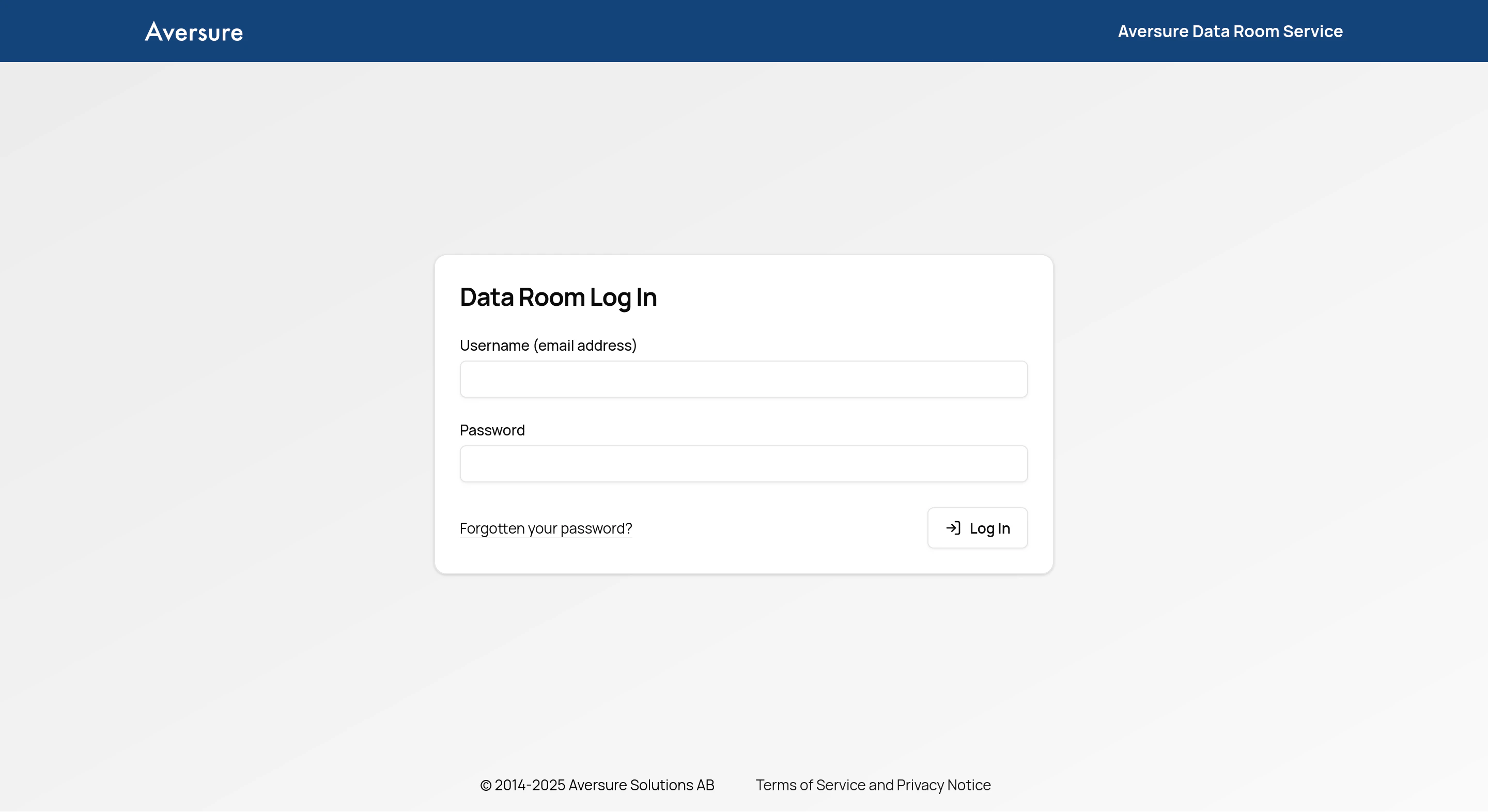
Use a [supported web browser](/accessing-the-service/web-browser-support) and navigate to [dataroom.aversure.com](https://dataroom.aversure.com). Log in with your email address and password. If you forgot your password, [reset it](/accessing-the-service/password-authentication#resetting-the-password) using the link on the login page.
Some data rooms require two-factor authentication at a later stage of the login process. In such cases, after you have selected the data room to access, you will be required to enter a six-digit code that was sent as a text message to your mobile device.
If you log in again while you still have data rooms open in other browser tabs or windows, those sessions are kept active and are no longer signed out.
If you have not received login details, ask the data room administrator to add you. You will then receive an email to create a user account and set a password.