> ## Documentation Index
> Fetch the complete documentation index at: https://docs.aversure.com/llms.txt
> Use this file to discover all available pages before exploring further.
# Password and authentication
> Setting, resetting, and changing your password, and configuring two-factor authentication
## Setting a password the first time
The first time a user is invited to the Service, they will receive an email with a link to set their password.
The password that they set for their account will be used to access all data rooms that they have been invited to.
If a user has already set a password, later invitations will not include a link to set the password.
If a user has forgotten their password, they may [reset it](#resetting-the-password).
## Resetting the password
1. Go to the [login page](https://dataroom.aversure.com/).
2. Click on **Forgotten your password?**
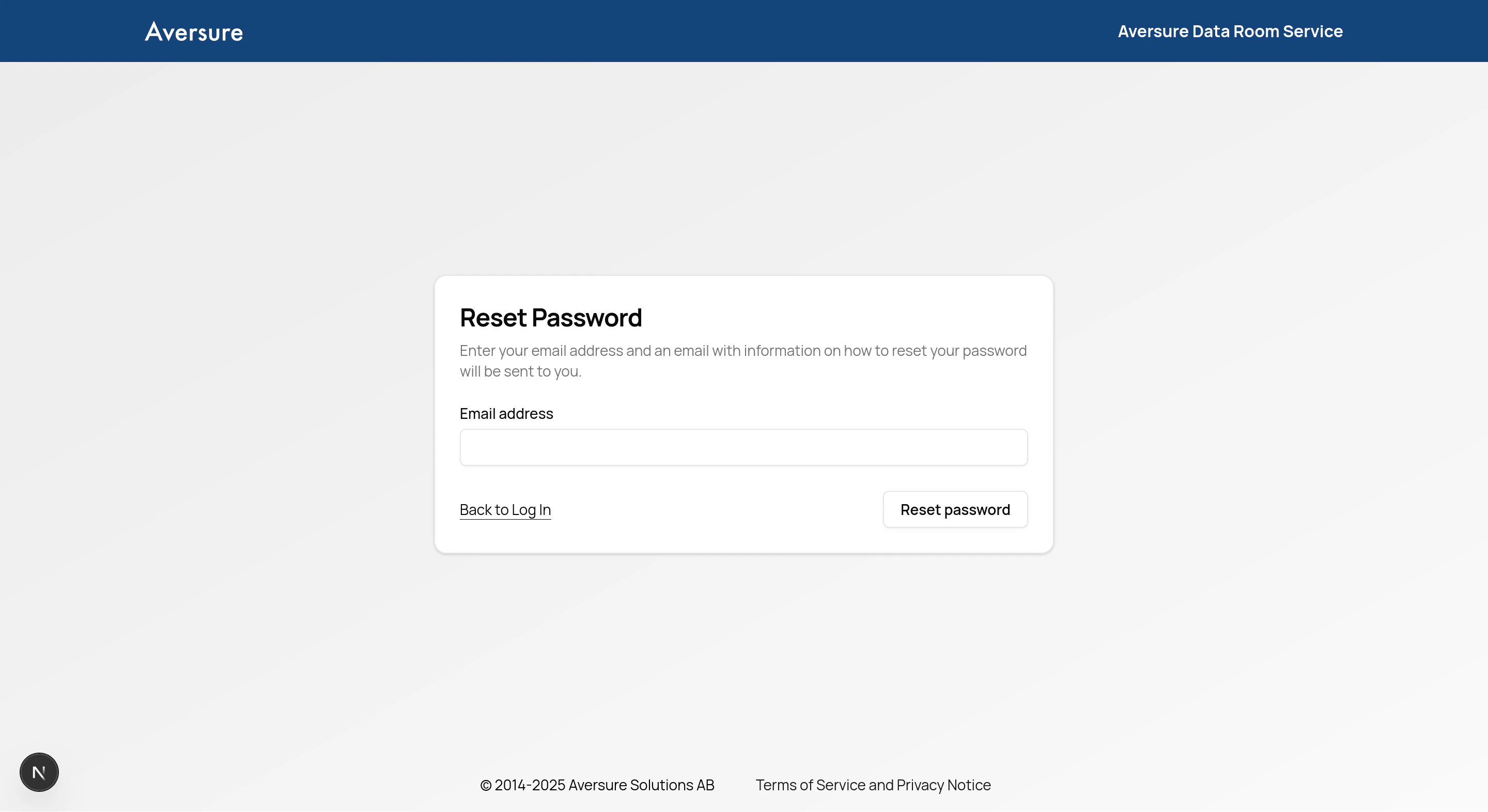
3. Enter your email address and click on **Reset password**.
4. Follow the instructions in the email to set a new password for the account.
 ## Changing the password
1. Click on the **Settings** button in the top right corner of the data room.
2. Click on the link **Click to update** under the **Password and security settings** heading.
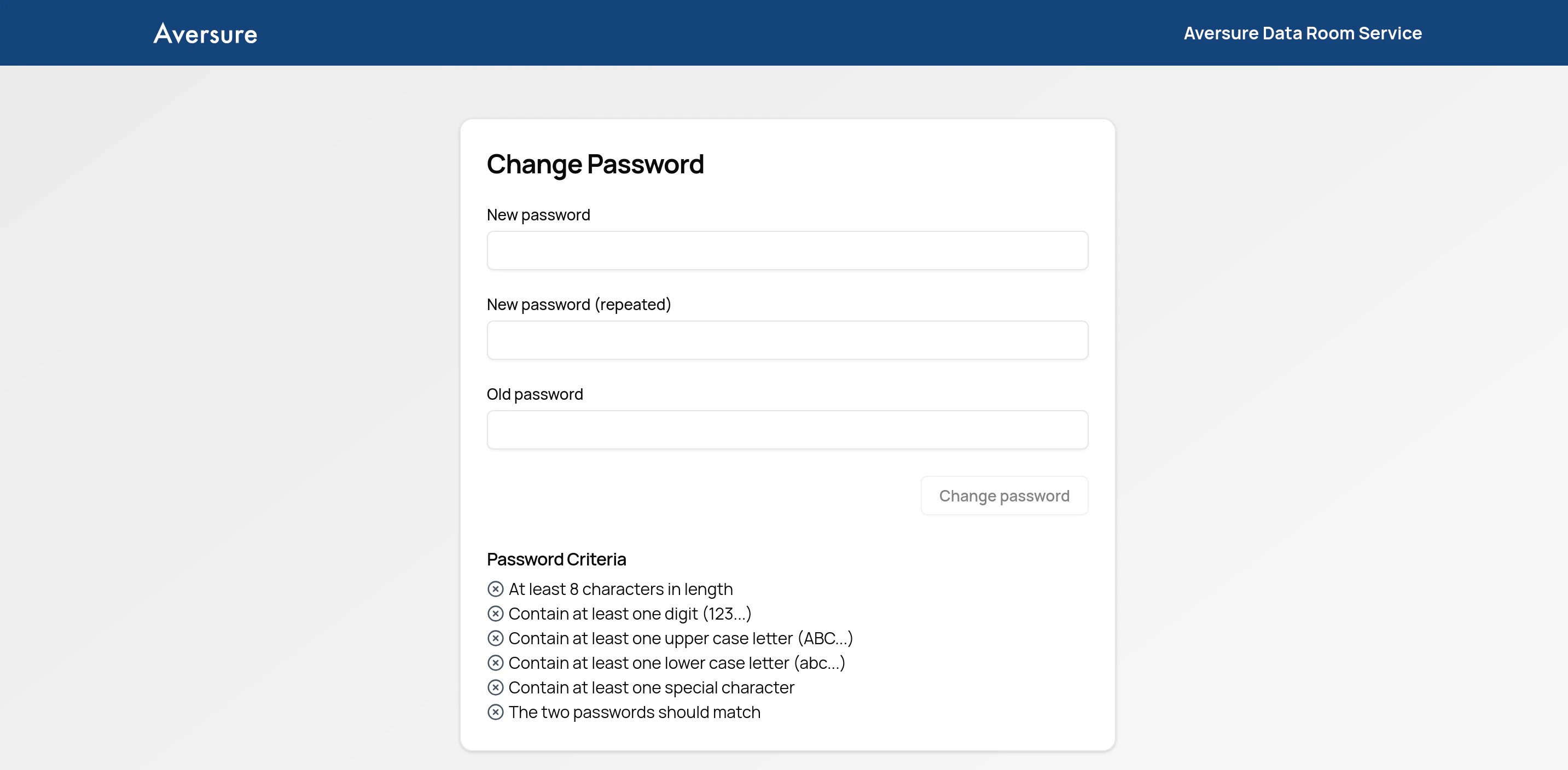
3. Enter your new and old password to confirm.
## Changing the password
1. Click on the **Settings** button in the top right corner of the data room.
2. Click on the link **Click to update** under the **Password and security settings** heading.
3. Enter your new and old password to confirm.
 ## Two-factor authentication
The Service supports multiple methods for two-factor authentication.
To add or remove a method:
1. Click on the **Settings** button in the top right corner of the data room.
2. Click on the link **Click to update** under the **Password and security settings** heading.
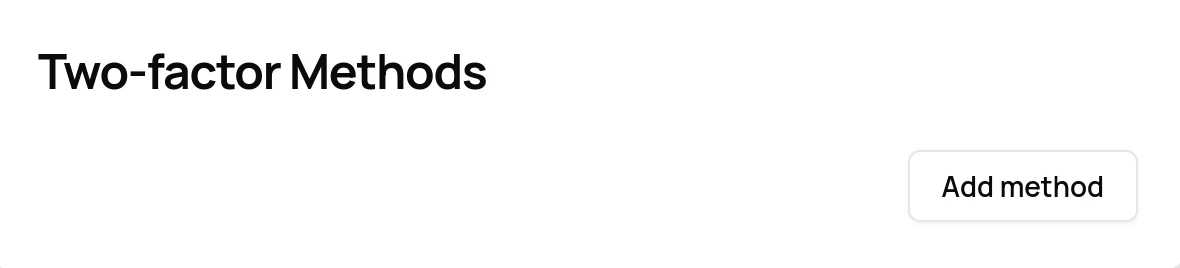
3. Scroll down to the heading **Two-factor Methods** and add or remove a method.
## Two-factor authentication
The Service supports multiple methods for two-factor authentication.
To add or remove a method:
1. Click on the **Settings** button in the top right corner of the data room.
2. Click on the link **Click to update** under the **Password and security settings** heading.
3. Scroll down to the heading **Two-factor Methods** and add or remove a method.
 ### Supported methods
* One-time codes sent via SMS.
* One-time passwords generated by [YubiKeys](https://www.yubico.com/).
* One-time passwords generated by authenticator apps such as Google Authenticator ([iOS](https://itunes.apple.com/app/google-authenticator/id388497605) / [Android](https://play.google.com/store/apps/details?id=com.google.android.apps.authenticator2\&hl=en)) or Authy ([iOS](https://itunes.apple.com/app/authy/id494168017) / [Android](https://play.google.com/store/apps/details?id=com.authy.authy\&hl=en)).
### Supported methods
* One-time codes sent via SMS.
* One-time passwords generated by [YubiKeys](https://www.yubico.com/).
* One-time passwords generated by authenticator apps such as Google Authenticator ([iOS](https://itunes.apple.com/app/google-authenticator/id388497605) / [Android](https://play.google.com/store/apps/details?id=com.google.android.apps.authenticator2\&hl=en)) or Authy ([iOS](https://itunes.apple.com/app/authy/id494168017) / [Android](https://play.google.com/store/apps/details?id=com.authy.authy\&hl=en)).