> ## Documentation Index
> Fetch the complete documentation index at: https://docs.aversure.com/llms.txt
> Use this file to discover all available pages before exploring further.
# Upload dates and recently updated files
> Managing upload dates and the recently updated files list
Information on the upload date of each file can be found in the data room. This information is also included (as a hidden column) in index exports.
The most recently updated files are shown in the special folder **Recently updated files** in the data room.
## Limiting recently updated files
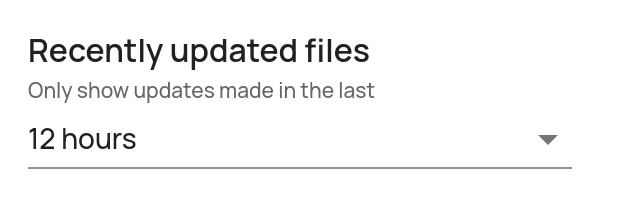
**Recently updated files** can be limited to only show files uploaded in the last X hours (unlimited by default). To change this setting:
1. In the **Administration Interface**, go to the **Data Rooms** page.
2. Click on **Edit** for the relevant data room.
3. Click on **Edit** in the **Other settings** pane.
4. Adjust the **Recently updated** **files** setting.
5. Click on **Save**.
 ## Resetting recently updated files
The list of **Recently updated files** can be reset (to an empty list). If it is reset, it will only include uploads made after the reset. To reset the list:
1. In the **Administration Interface**, go to the **Data Rooms** page.
2. Click on **Edit** for the relevant data room.
3. In the bottom pane, under the **Recently updated files** heading, click on the **Reset list** button.
## Resetting recently updated files
The list of **Recently updated files** can be reset (to an empty list). If it is reset, it will only include uploads made after the reset. To reset the list:
1. In the **Administration Interface**, go to the **Data Rooms** page.
2. Click on **Edit** for the relevant data room.
3. In the bottom pane, under the **Recently updated files** heading, click on the **Reset list** button.
 ## Resetting the upload date for all files in a data room
If you want to renew the upload dates for all files in a data room without having to upload them again, you can use the **Reset upload dates** feature.
Using this feature will set the upload date for all files in the data room to the current date and time. To do so:
1. In the **Administration Interface**, go to the **Data Rooms** page.
2. Click on **Edit** for the relevant data room.
3. In the bottom pane, under the **Upload dates** heading, click on the **Reset upload dates** button and confirm the action in the dialog that appears.
This action is irreversible and cannot be undone.
## Resetting the upload date for all files in a data room
If you want to renew the upload dates for all files in a data room without having to upload them again, you can use the **Reset upload dates** feature.
Using this feature will set the upload date for all files in the data room to the current date and time. To do so:
1. In the **Administration Interface**, go to the **Data Rooms** page.
2. Click on **Edit** for the relevant data room.
3. In the bottom pane, under the **Upload dates** heading, click on the **Reset upload dates** button and confirm the action in the dialog that appears.
This action is irreversible and cannot be undone.