> ## Documentation Index
> Fetch the complete documentation index at: https://docs.aversure.com/llms.txt
> Use this file to discover all available pages before exploring further.
# Multiple Q&A
> Setting up independent Q&A branches for multiple parties in a data room
**Multiple Q\&A** introduces the concept of **Q\&A branches**.
Each branch operates independently with its own user rights, categories, and question numbering.
This lets you manage multiple parties in the same data room, each with their own Q\&A.
It is important to set up the **Q\&A rights** correctly for each branch so that users only have access to the relevant branch(es).
By default, all users of a data room are able to access a branch when it is created.
## Activating multiple Q\&A
In order to activate multiple Q\&A, Q\&A must be enabled for the data room. If the option to activate multiple Q\&A is not available, please [contact support](/support/support).
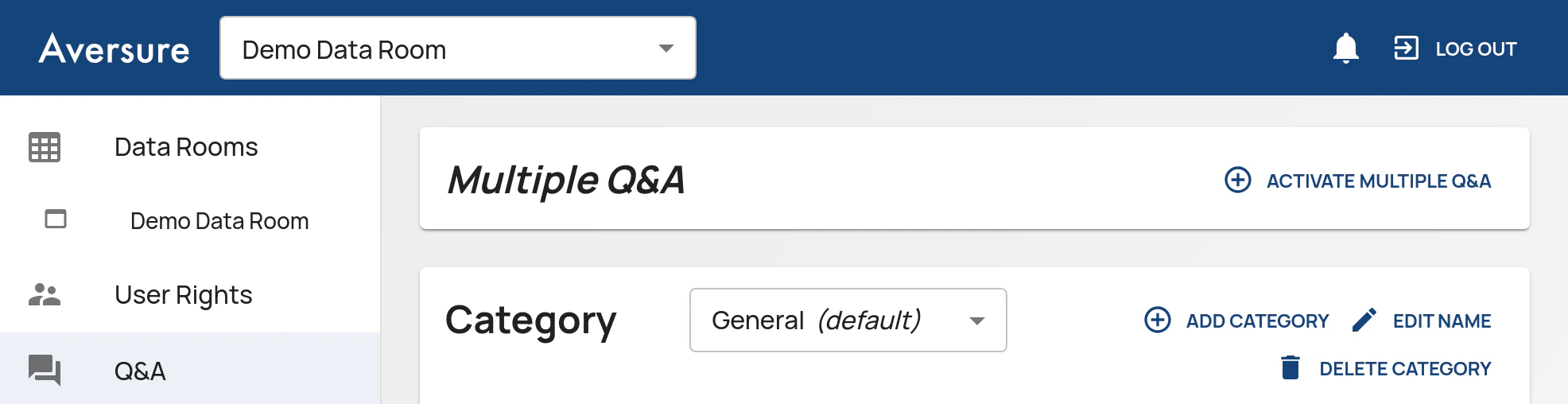
1. In the **Administration Interface**, go to the **Q\&A** page.
2. Select the **Data room** in the drop-down box in the header.
3. Under the heading **Multiple Q\&A**, click on **Activate multiple Q\&A**.
If Multiple Q\&A has already been activated, click on **Add branch** to add a new Q\&A branch.
4. Enter the name of the new Q\&A branch that you would like to create, e.g. "Q\&A 2" or "Q\&A \[bidder name]".
5. Click **Add** to add the Q\&A branch and enable multiple Q\&A.
6. Set up the user rights (see below).
 ## Setting up user rights for multiple Q\&A
A new branch is visible to all users when created, making it important to restrict the rights as needed when a new branch is added.
Additionally, should a new user group be created, it will be granted access rights to all Q\&A branches.
To set up the **rights** for multiple Q\&A, it is recommended that you create individual user groups for each bidder (e.g. *Bidder 1*, *Bidder 2*, *Bidder 3*, etc.) and for the seller (e.g. *Seller*).
This will allow you to restrict the bidders' access to a single Q\&A branch while the seller has access to all branches, allowing it to answer questions in all branches.
To set up the rights for multiple Q\&A:
1. In the **Administration Interface**, go to the **Q\&A** page.
2. Select the **Data room** in the drop-down box in the header.
3. Select the relevant **branch** in the next selector.
4. Select the default **category** if there are multiple categories.
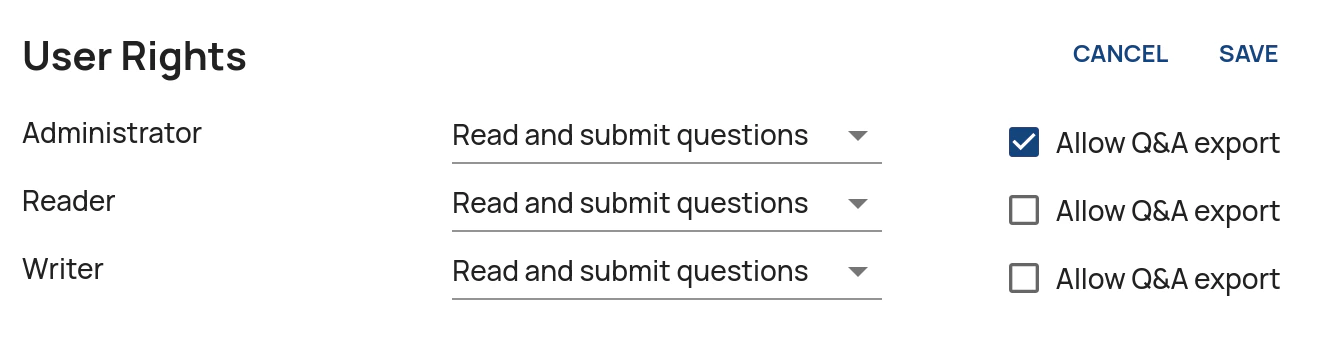
5. Click on **Edit** in the **User Rights** pane.
6. Adjust the rights for each **User Group**.
If a User Group should not have access to a branch, set the rights to *No rights*.
7. Click on **Save** to save the settings.
8. Other categories inherit their rights from the default category of the branch.
Should rights have been set on the other categories, repeat the above steps for each category.
9. Repeat the above steps for each branch.
## Setting up user rights for multiple Q\&A
A new branch is visible to all users when created, making it important to restrict the rights as needed when a new branch is added.
Additionally, should a new user group be created, it will be granted access rights to all Q\&A branches.
To set up the **rights** for multiple Q\&A, it is recommended that you create individual user groups for each bidder (e.g. *Bidder 1*, *Bidder 2*, *Bidder 3*, etc.) and for the seller (e.g. *Seller*).
This will allow you to restrict the bidders' access to a single Q\&A branch while the seller has access to all branches, allowing it to answer questions in all branches.
To set up the rights for multiple Q\&A:
1. In the **Administration Interface**, go to the **Q\&A** page.
2. Select the **Data room** in the drop-down box in the header.
3. Select the relevant **branch** in the next selector.
4. Select the default **category** if there are multiple categories.
5. Click on **Edit** in the **User Rights** pane.
6. Adjust the rights for each **User Group**.
If a User Group should not have access to a branch, set the rights to *No rights*.
7. Click on **Save** to save the settings.
8. Other categories inherit their rights from the default category of the branch.
Should rights have been set on the other categories, repeat the above steps for each category.
9. Repeat the above steps for each branch.
 You may check which **Q\&A branches** are available to each user group on the **User Rights** page of the **Administration Interface**. If multiple Q\&A has been enabled for a data room, a **Q\&A rights summary** will be included at the bottom of the page. It includes information on which branches are available to the selected user group.
## Setting up the Q\&A pipeline
The **categories** and their **pipelines** are independent between the **Q\&A branches** and need to be set up separately.
To set up the **pipelines**, please see the [instructions](/qa/qa-pipeline).
You may check which **Q\&A branches** are available to each user group on the **User Rights** page of the **Administration Interface**. If multiple Q\&A has been enabled for a data room, a **Q\&A rights summary** will be included at the bottom of the page. It includes information on which branches are available to the selected user group.
## Setting up the Q\&A pipeline
The **categories** and their **pipelines** are independent between the **Q\&A branches** and need to be set up separately.
To set up the **pipelines**, please see the [instructions](/qa/qa-pipeline).