> ## Documentation Index
> Fetch the complete documentation index at: https://docs.aversure.com/llms.txt
> Use this file to discover all available pages before exploring further.
# Light Data Rooms
> Work with files and folders in a light data room on the mobile interface
Light data rooms work in a similar way to standard data rooms on the mobile interface, but the way you navigate and manage files and folders differs.
## Navigating a Light Data Room
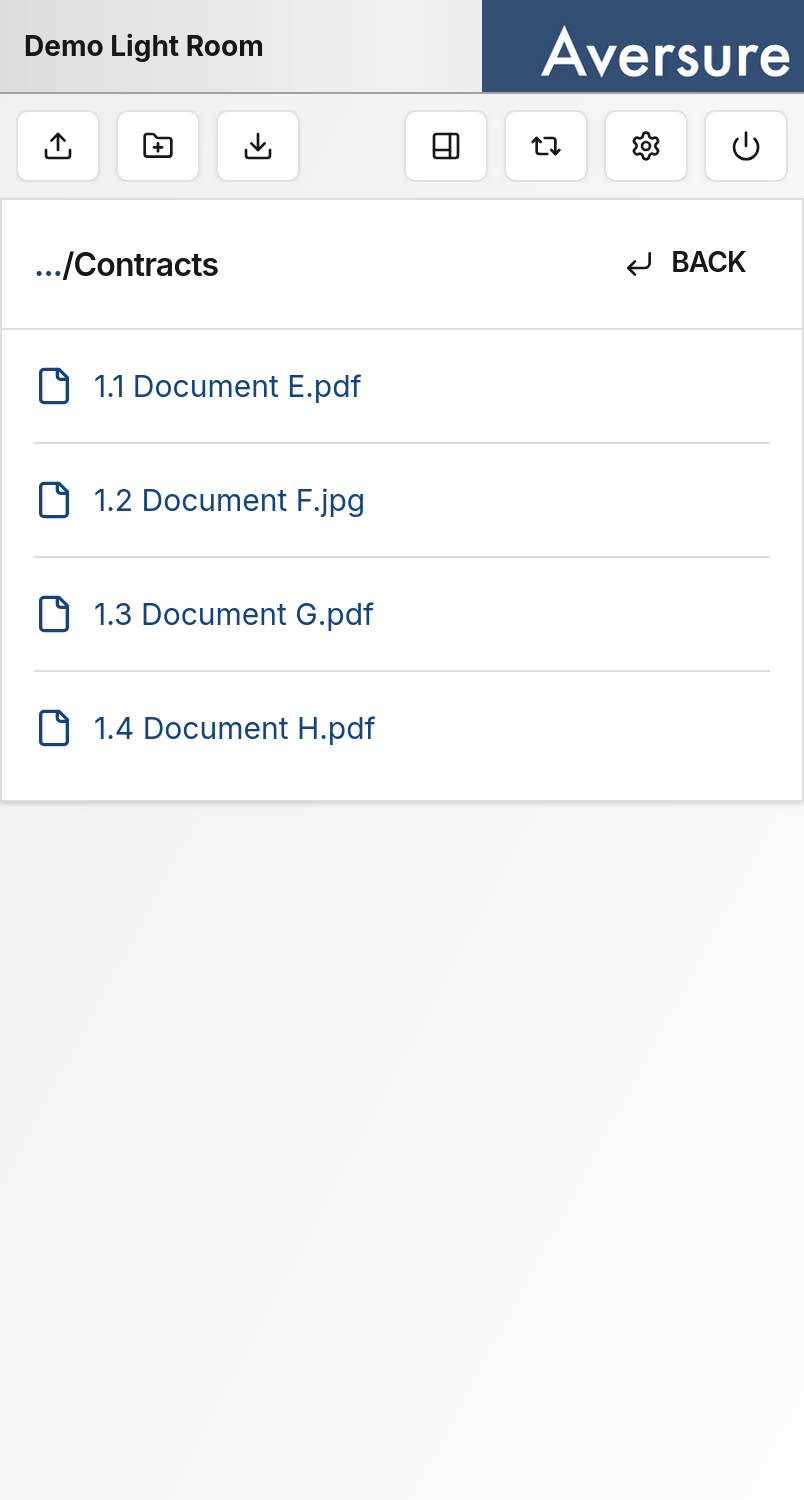
The current folder is shown as a single list of its subfolders and files:
* Tap a **folder name** to move into that folder.
* Tap a **file name** to open that file.
* Tap **BACK** in the top right to return to the previous folder.
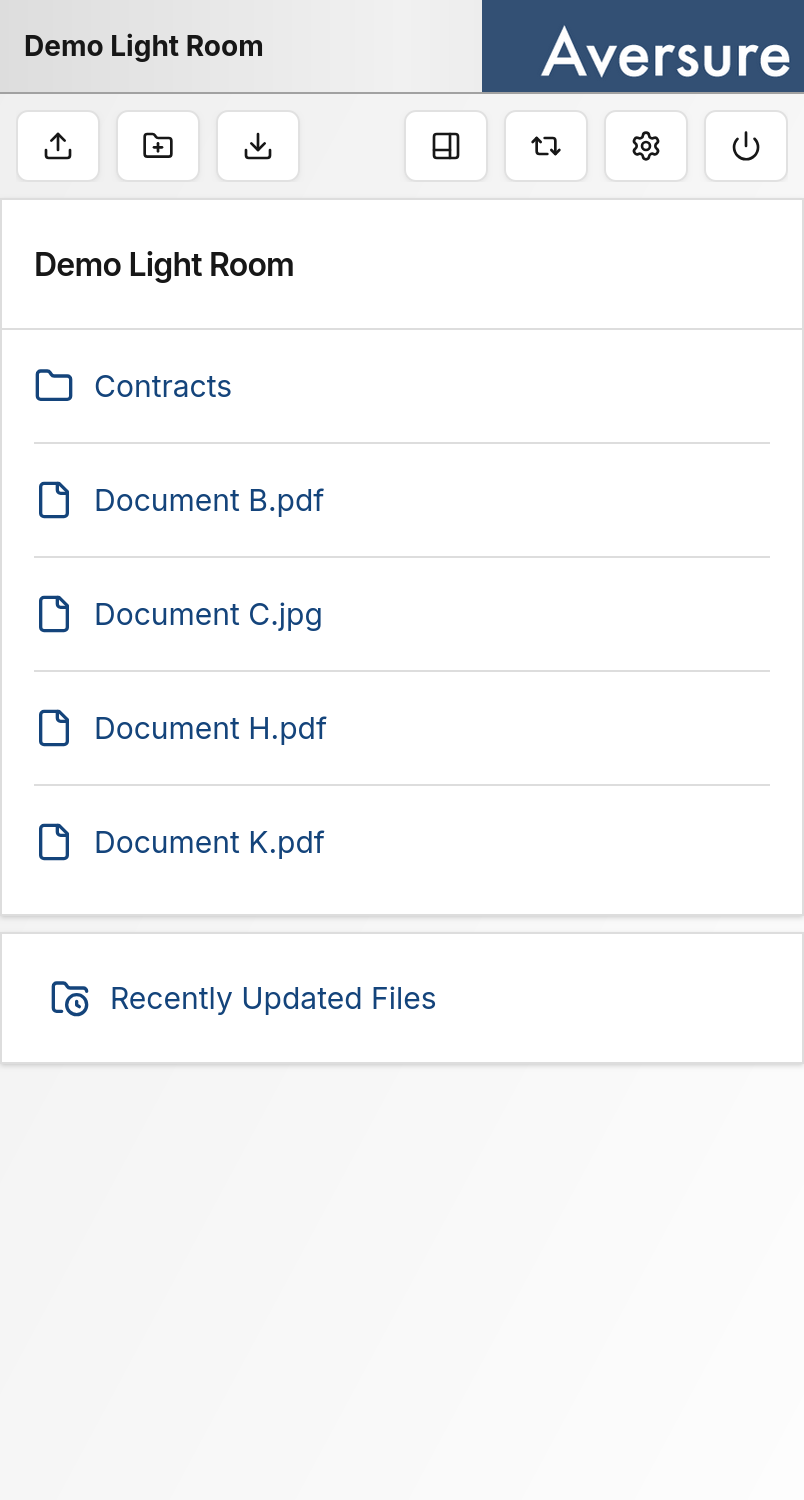 ### Recently Updated Files
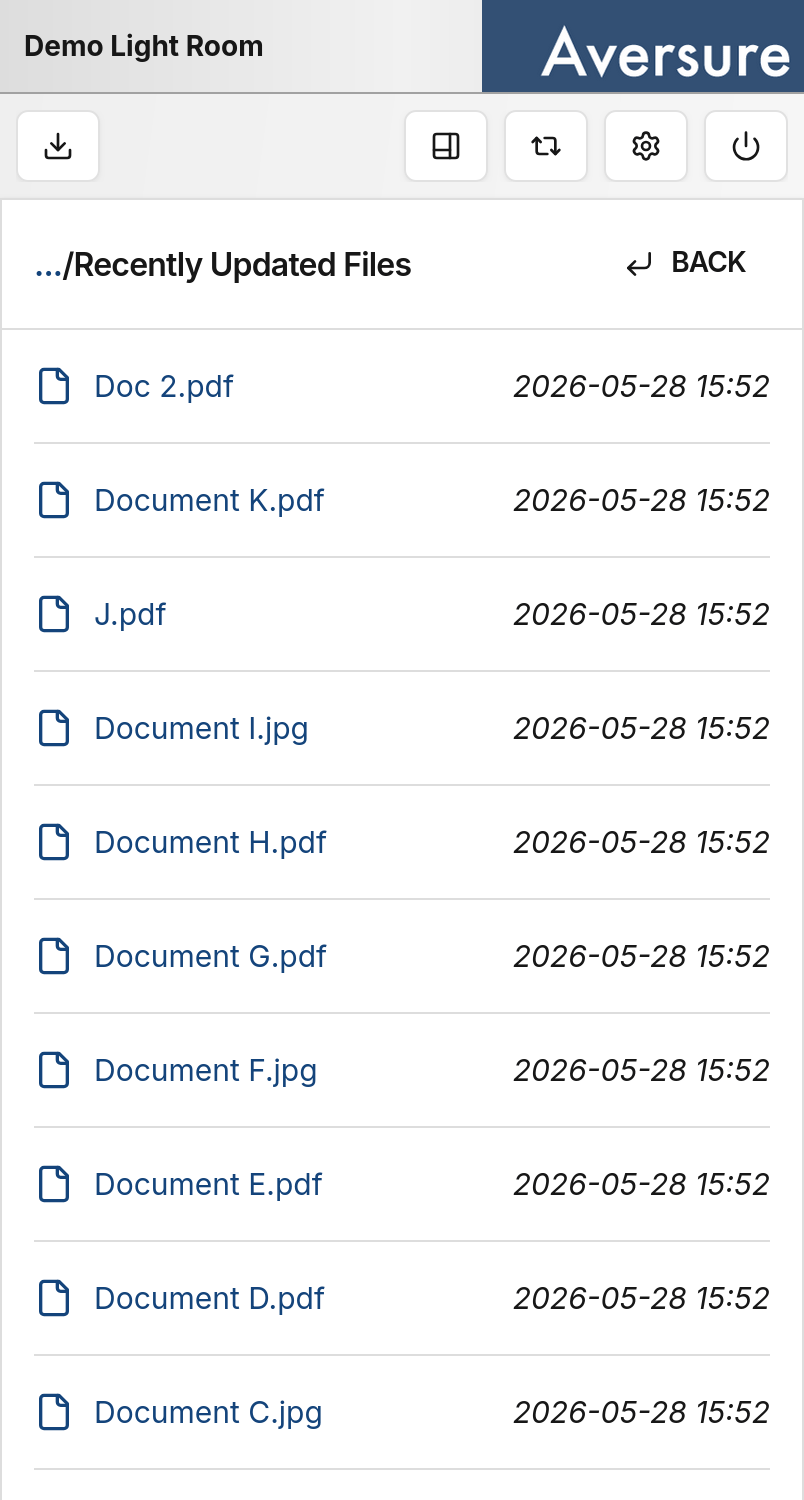
The **Recently Updated Files** view lists files across the data room together with their last update time. Tapping a file name opens the file.
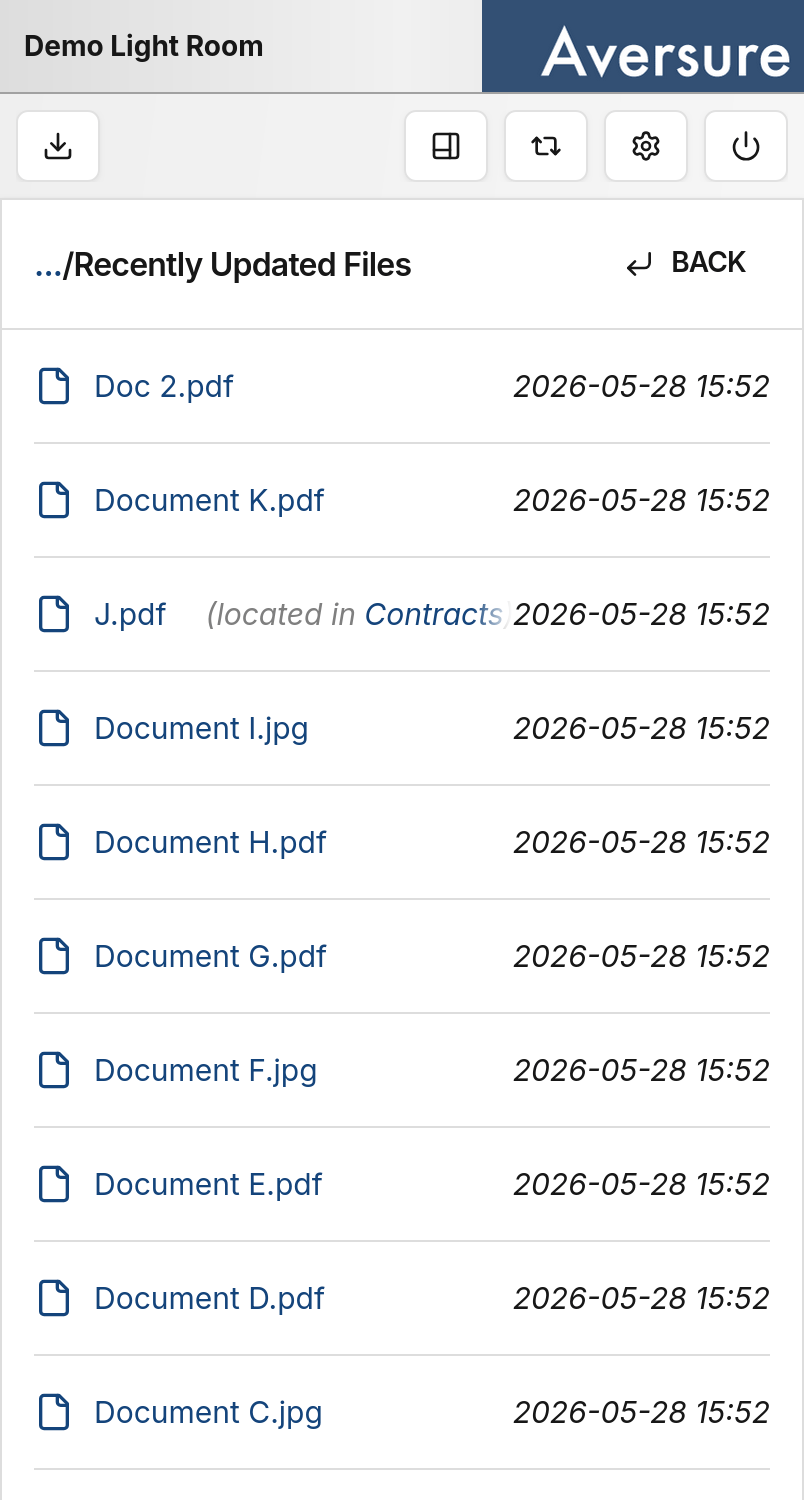
If you instead want to see which folder a file is located in, tap elsewhere on the row (not on the file name). The folder name then appears next to the file name, and you can tap that folder name to navigate to the folder.
## Managing files and folders
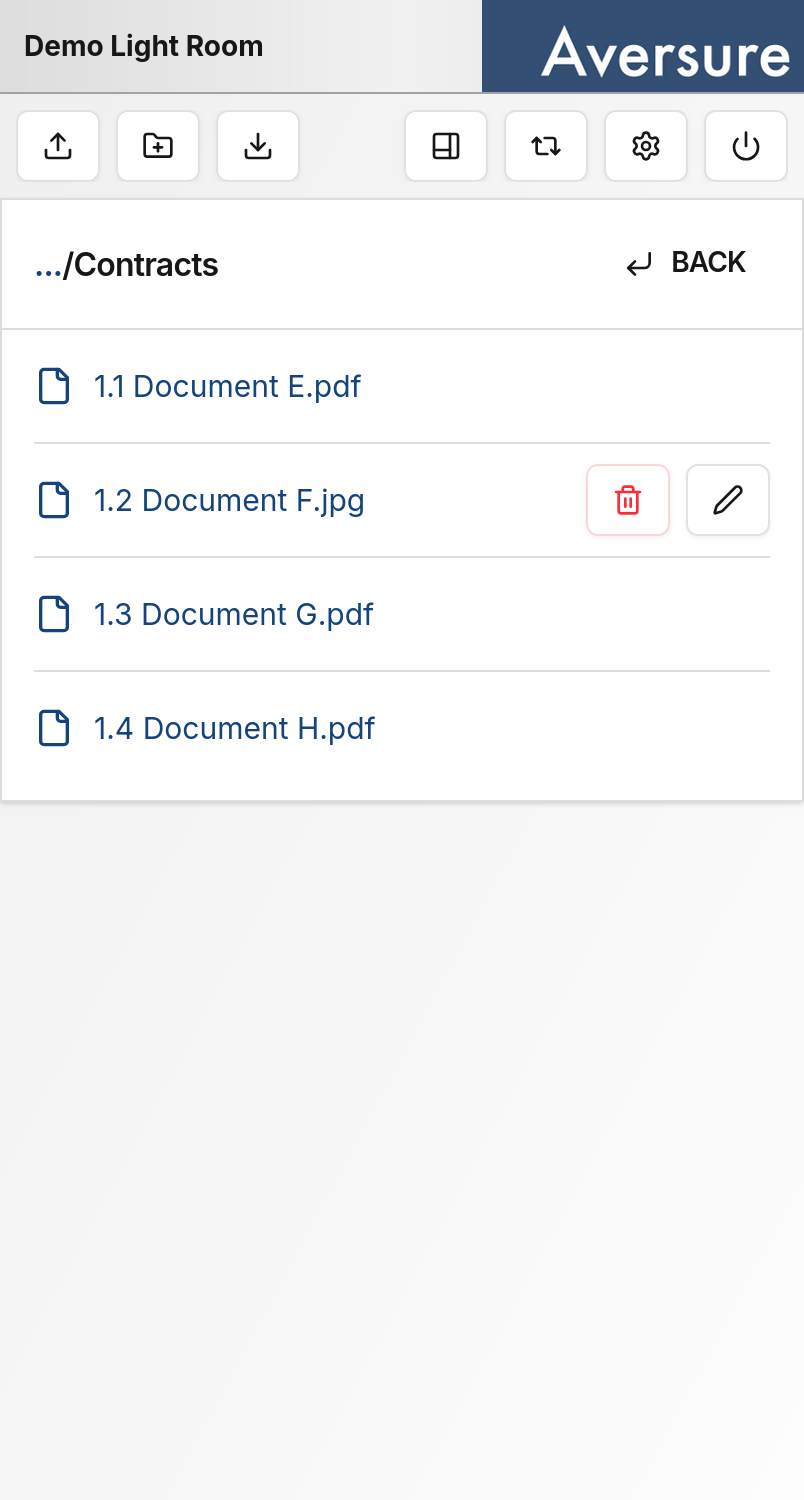
To rename or delete a file or folder, tap the row for that file or folder (not the name). Rename and delete buttons appear on the right-hand side of the row. Tap the pencil icon to rename, or the trash icon to delete.
### Recently Updated Files
The **Recently Updated Files** view lists files across the data room together with their last update time. Tapping a file name opens the file.
If you instead want to see which folder a file is located in, tap elsewhere on the row (not on the file name). The folder name then appears next to the file name, and you can tap that folder name to navigate to the folder.
## Managing files and folders
To rename or delete a file or folder, tap the row for that file or folder (not the name). Rename and delete buttons appear on the right-hand side of the row. Tap the pencil icon to rename, or the trash icon to delete.