> ## Documentation Index
> Fetch the complete documentation index at: https://docs.aversure.com/llms.txt
> Use this file to discover all available pages before exploring further.
# Q&A in Standard Data Rooms
> Use Q&A in a standard data room on the mobile interface
Q\&A on the mobile interface works in the same way as on the desktop interface. You can submit, accept, distribute, answer, and confirm questions exactly as you would on a computer. For an overview of the Q\&A feature, see [Introduction to Q\&A](/qa/introduction-to-qa).
## Navigating the Q\&A panel
The Q\&A panel opens on the main view, which lists the standard question views (such as **All questions**, **My questions**, and **Needing my attention**), a search field, and the list of categories.
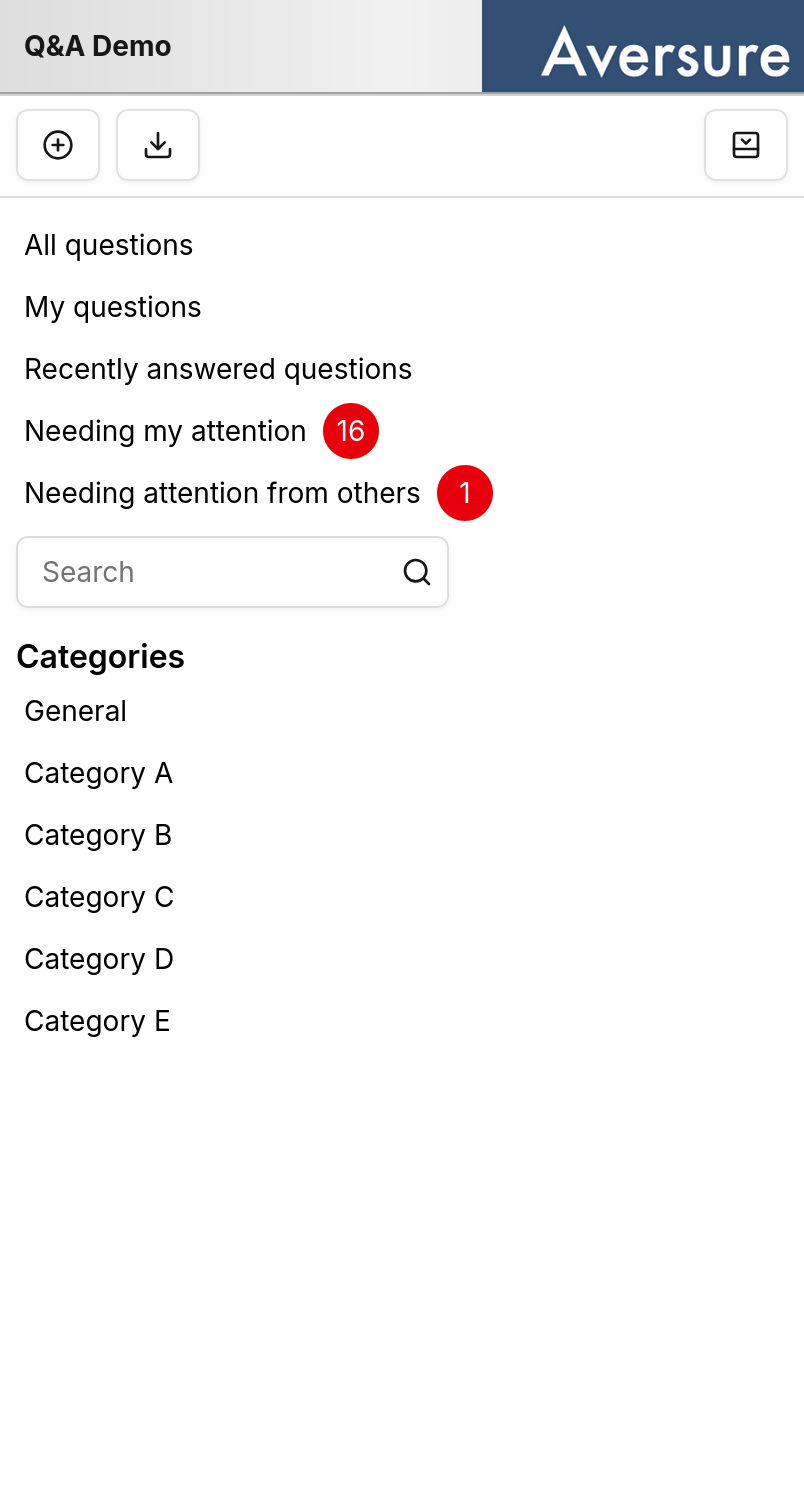 Three buttons are shown in the top menu:
* **Ask question** — submit a new question.
* **Export Q\&A** — export the Q\&A.
* **Close** — close the Q\&A panel and return to the files and folders view.
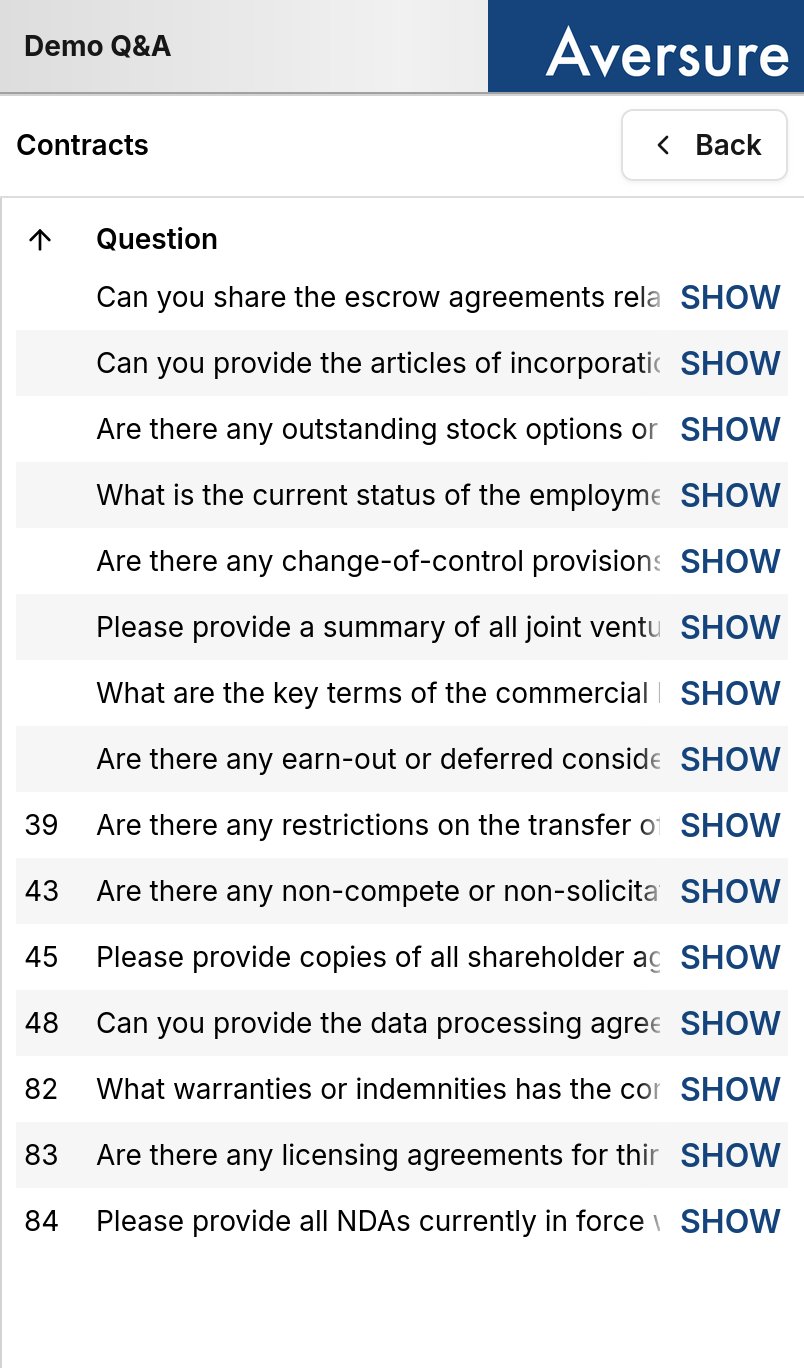
Tap a category to see the questions in that category. From the category view, tap **Back** in the top right to return to the main Q\&A view.
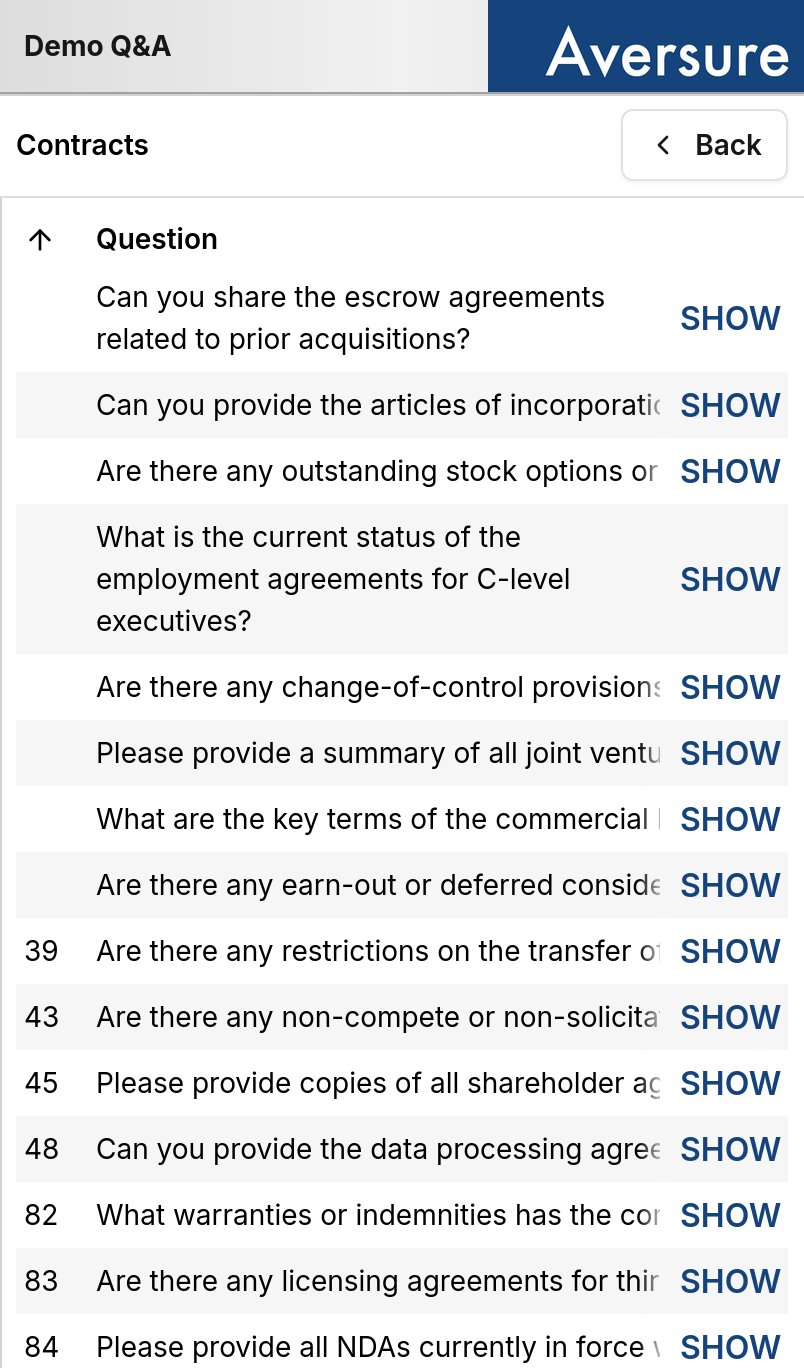
Tap a row in the question list to expand it and preview the full question text without leaving the list.
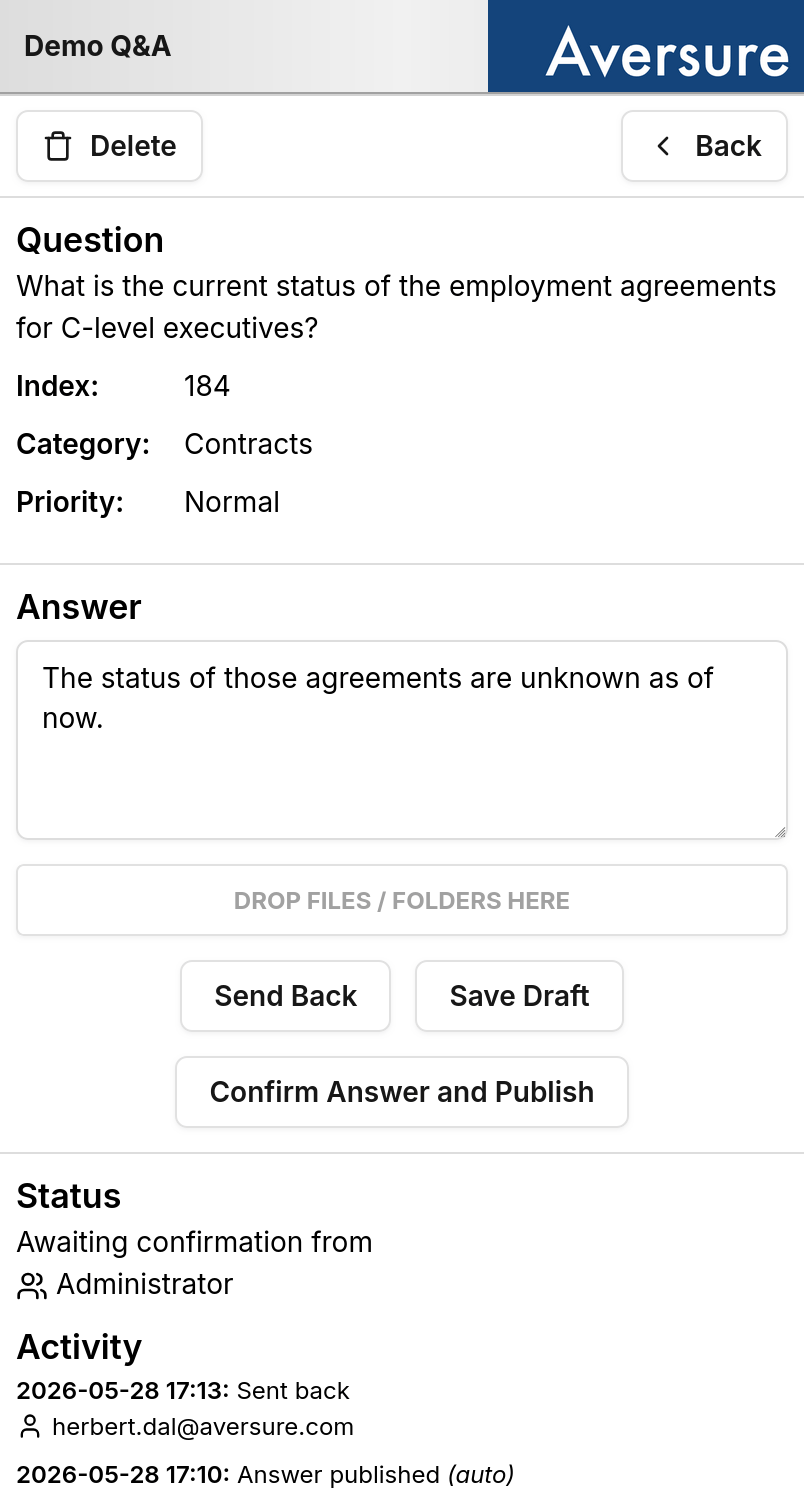
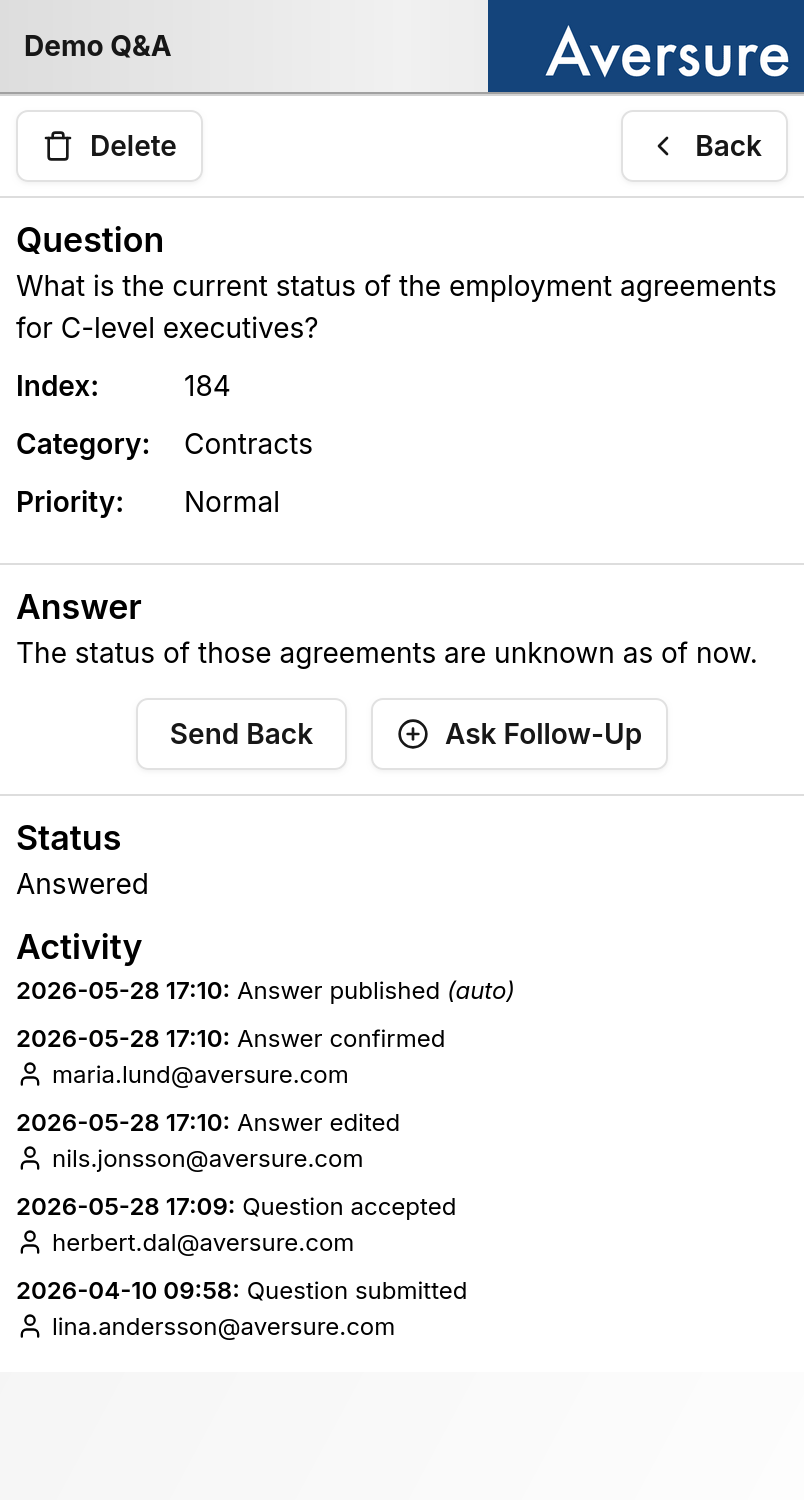
Tap **SHOW** on a row to open the question. From there you can answer it, send it back, save a draft, or delete it, depending on your role and the state of the question.
Use **Back** in the top right of the question view to return to the category list.
Files can be uploaded to an answer but they need to be placed in a data room folder using the desktop interface.
## Differences from the desktop interface
Some Q\&A features are not available on the mobile interface:
* **Bulk handling of questions.** Actions that operate on several questions at once are only available on the desktop interface. On mobile, questions are handled one at a time.
* **Columns.** The number of columns shown depends on your screen size. If you want to see more, try putting your phone in landscape mode.
If you need either of these, open the Service on your computer.
Three buttons are shown in the top menu:
* **Ask question** — submit a new question.
* **Export Q\&A** — export the Q\&A.
* **Close** — close the Q\&A panel and return to the files and folders view.
Tap a category to see the questions in that category. From the category view, tap **Back** in the top right to return to the main Q\&A view.
Tap a row in the question list to expand it and preview the full question text without leaving the list.
Tap **SHOW** on a row to open the question. From there you can answer it, send it back, save a draft, or delete it, depending on your role and the state of the question.
Use **Back** in the top right of the question view to return to the category list.
Files can be uploaded to an answer but they need to be placed in a data room folder using the desktop interface.
## Differences from the desktop interface
Some Q\&A features are not available on the mobile interface:
* **Bulk handling of questions.** Actions that operate on several questions at once are only available on the desktop interface. On mobile, questions are handled one at a time.
* **Columns.** The number of columns shown depends on your screen size. If you want to see more, try putting your phone in landscape mode.
If you need either of these, open the Service on your computer.