> ## Documentation Index
> Fetch the complete documentation index at: https://docs.aversure.com/llms.txt
> Use this file to discover all available pages before exploring further.
# Document security
> PDF watermarking and the Secure PDF Viewer
## Watermarking
Watermarking allows you to add watermarks to PDFs that are downloaded from a data room. The watermark will consist of the email address of the user that downloaded the document. It will be applied sideways across each page in a transparent text with a light gray font. A sample is shown below.
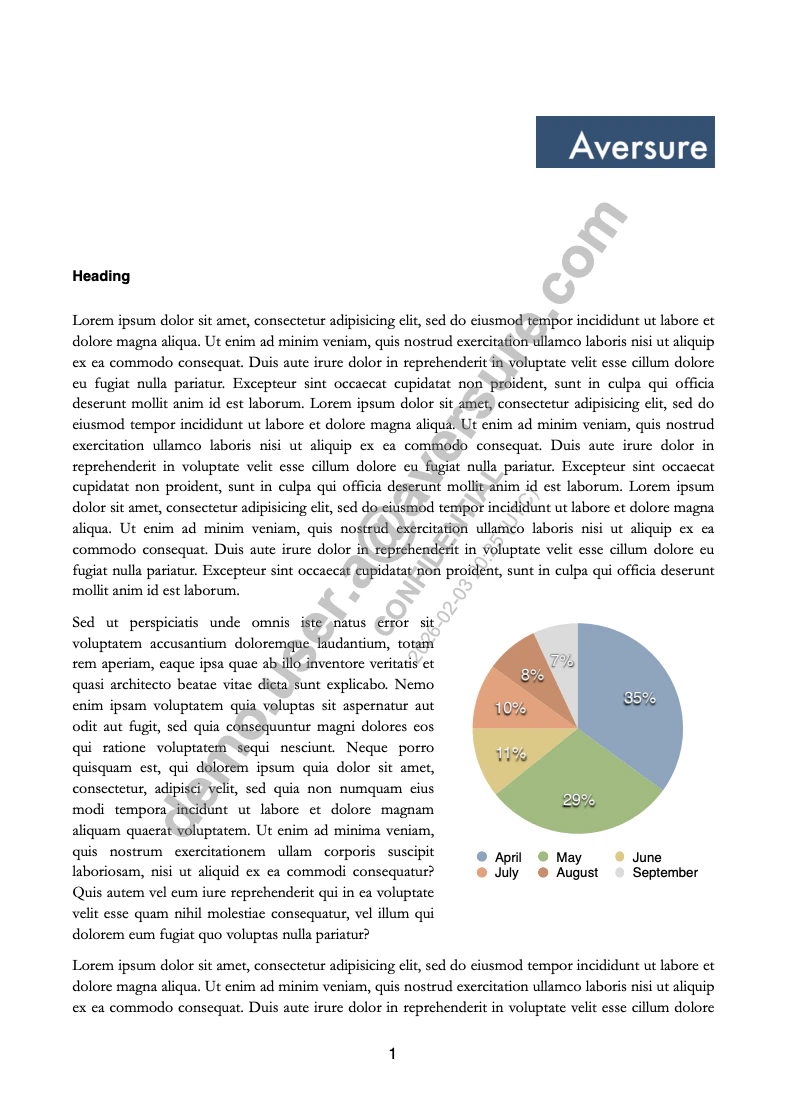 The Service may not be able to watermark encrypted PDFs, PDFs with corrupted file structures or PDFs with significant complexity or large file size (such as complex vector drawings).
Watermarking cannot be enabled for administrators.
For how to activate watermarking, see [Changing folder rights](/users-and-user-rights/customizing-user-rights#changing-folder-rights).
## Secure PDF Viewer
The **Secure PDF Viewer** restricts users' ability to download or print PDF documents from a data room. The Secure PDF Viewer allows users to read PDF documents on the screen while being logged in to the Service, but not to download or print them.
For how to activate the Secure PDF Viewer, see [Changing folder rights](/users-and-user-rights/customizing-user-rights#changing-folder-rights).
The Service may not be able to watermark encrypted PDFs, PDFs with corrupted file structures or PDFs with significant complexity or large file size (such as complex vector drawings).
Watermarking cannot be enabled for administrators.
For how to activate watermarking, see [Changing folder rights](/users-and-user-rights/customizing-user-rights#changing-folder-rights).
## Secure PDF Viewer
The **Secure PDF Viewer** restricts users' ability to download or print PDF documents from a data room. The Secure PDF Viewer allows users to read PDF documents on the screen while being logged in to the Service, but not to download or print them.
For how to activate the Secure PDF Viewer, see [Changing folder rights](/users-and-user-rights/customizing-user-rights#changing-folder-rights).