> ## Documentation Index
> Fetch the complete documentation index at: https://docs.aversure.com/llms.txt
> Use this file to discover all available pages before exploring further.
# Enforced two-factor authentication
> Requiring SMS-based two-factor authentication for data room users
As an administrator, you can require some users of a data room to be verified with a further authentication step before accessing the data room. Enforced two-factor authentication requires the user to enter a six-digit one-time code that was sent to the user's mobile device using SMS.
Enforced two-factor authentication cannot be enabled for the administrators of a data room, but they may employ user-enabled two-factor authentication.
### Enabling at data room creation
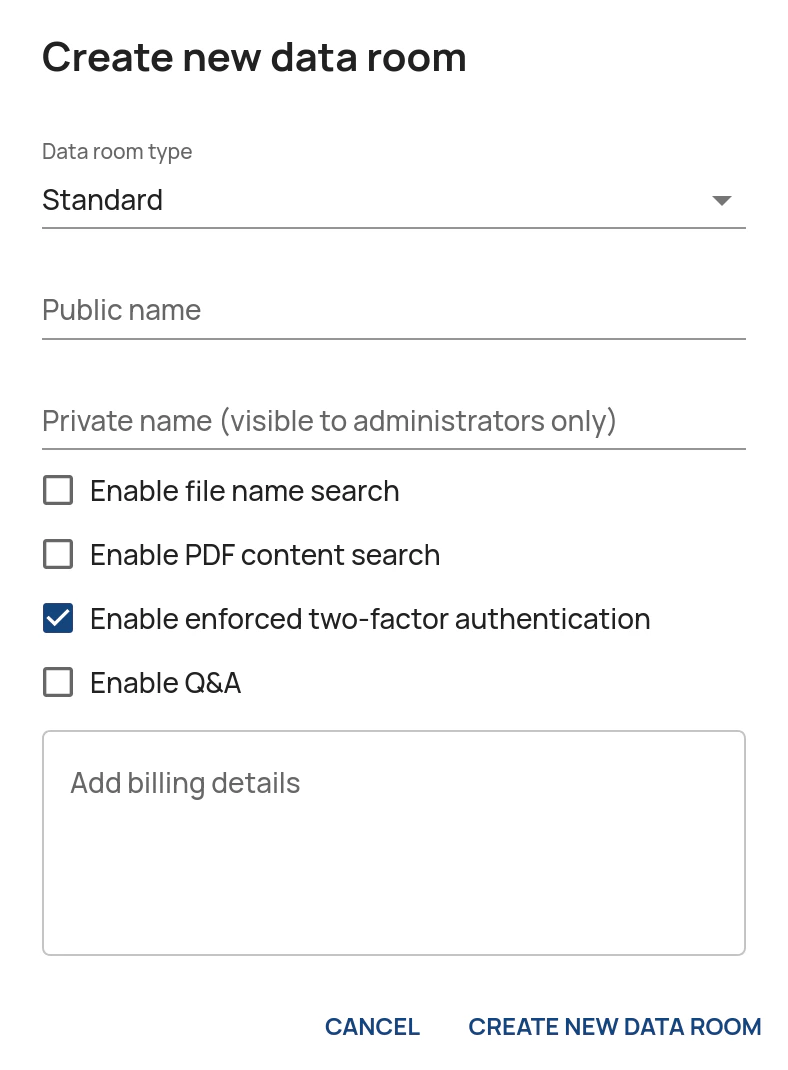
1. Tick the **Enable enforced two-factor authentication** checkbox in the **Create new data room** dialog.
 ### Enabling for an existing data room
1. In the **Administration Interface**, go to the **Data Rooms** page.
2. Click on **Edit** for the data room in question.
3. Click on **Edit settings**.
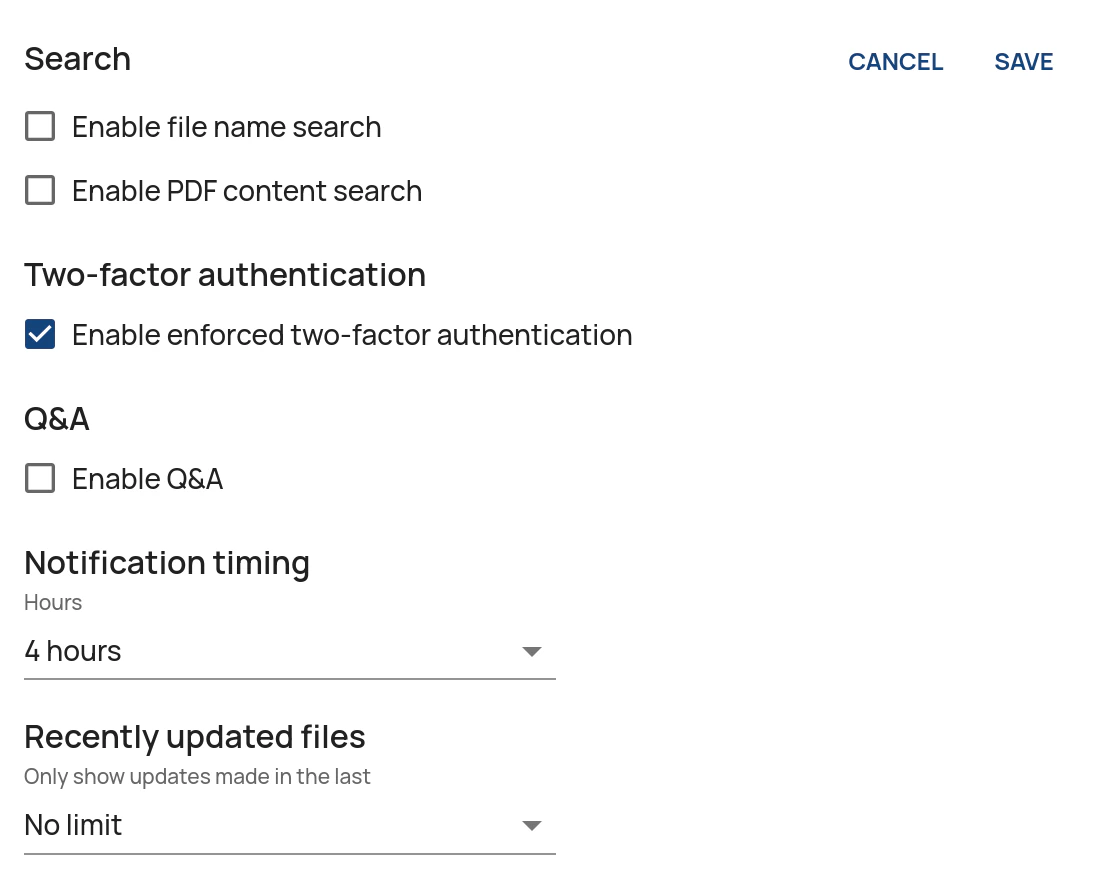
4. Tick the **Enable enforced two-factor authentication** checkbox.
5. Click on **Save**.
### Enabling for an existing data room
1. In the **Administration Interface**, go to the **Data Rooms** page.
2. Click on **Edit** for the data room in question.
3. Click on **Edit settings**.
4. Tick the **Enable enforced two-factor authentication** checkbox.
5. Click on **Save**.
 ### Adding enforced two-factor authentication for a user
1. In the **Administration Interface**, go to the **User Rights** page.
2. Select the **Data room** in the drop-down box in the header.
3. Select the **User group** in the next drop-down box.
4. Once the user has been invited to the data room, click on the **Edit** button in the column *Two-factor phone number*.
### Adding enforced two-factor authentication for a user
1. In the **Administration Interface**, go to the **User Rights** page.
2. Select the **Data room** in the drop-down box in the header.
3. Select the **User group** in the next drop-down box.
4. Once the user has been invited to the data room, click on the **Edit** button in the column *Two-factor phone number*.
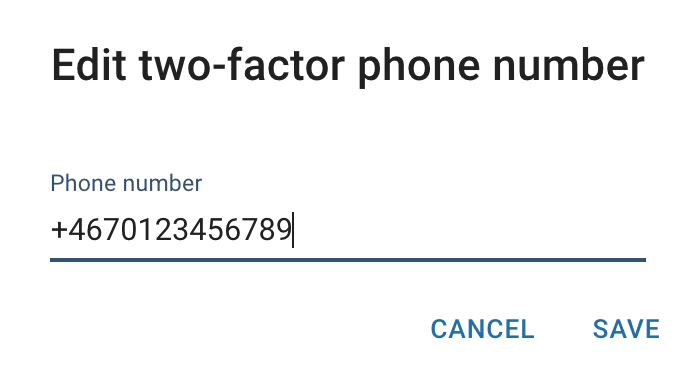
 5. Enter the phone number in full international format (e.g. +4670123456789) and click on **Save**. Please note that the phone number needs to be able to receive text messages.
 ### Removing two-factor authentication for a user
1. In the **Administration Interface**, go to the **User Rights** page.
2. Select the **Data room** in the drop-down box in the header.
3. Select the **User group** in the next drop-down box.
4. Click the **Edit** button in the **Two-factor phone number** column.
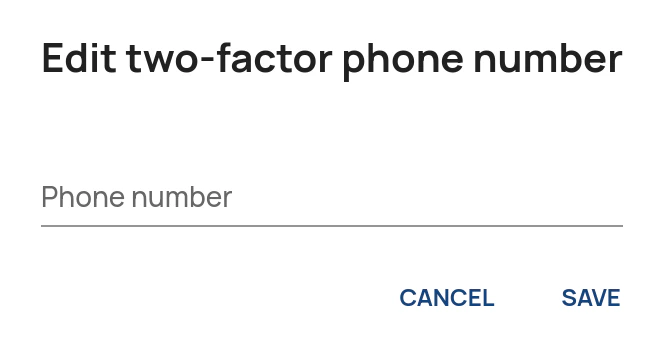
5. Clear the phone number field and click on **Save** to confirm.
### Removing two-factor authentication for a user
1. In the **Administration Interface**, go to the **User Rights** page.
2. Select the **Data room** in the drop-down box in the header.
3. Select the **User group** in the next drop-down box.
4. Click the **Edit** button in the **Two-factor phone number** column.
5. Clear the phone number field and click on **Save** to confirm.
 ## User-enabled two-factor authentication
Users may also [enable two-factor authentication](/accessing-the-service/password-authentication#two-factor-authentication) for their accounts.
## User-enabled two-factor authentication
Users may also [enable two-factor authentication](/accessing-the-service/password-authentication#two-factor-authentication) for their accounts.