> ## Documentation Index
> Fetch the complete documentation index at: https://docs.aversure.com/llms.txt
> Use this file to discover all available pages before exploring further.
# Managing users and groups
> Adding and removing users and creating user groups
Users and user groups are managed on the **User Rights** page of the **Administration Interface**.
## Adding users
1. In the **Administration Interface**, go to the **User Rights** page.
2. Select the **Data room** in the drop-down box in the header.
3. Select the **User group** in the next drop-down box.
4. Click on the **Add users** button.
5. Enter the email addresses of one or more users (separated on individual rows) and click the **Invite** button.
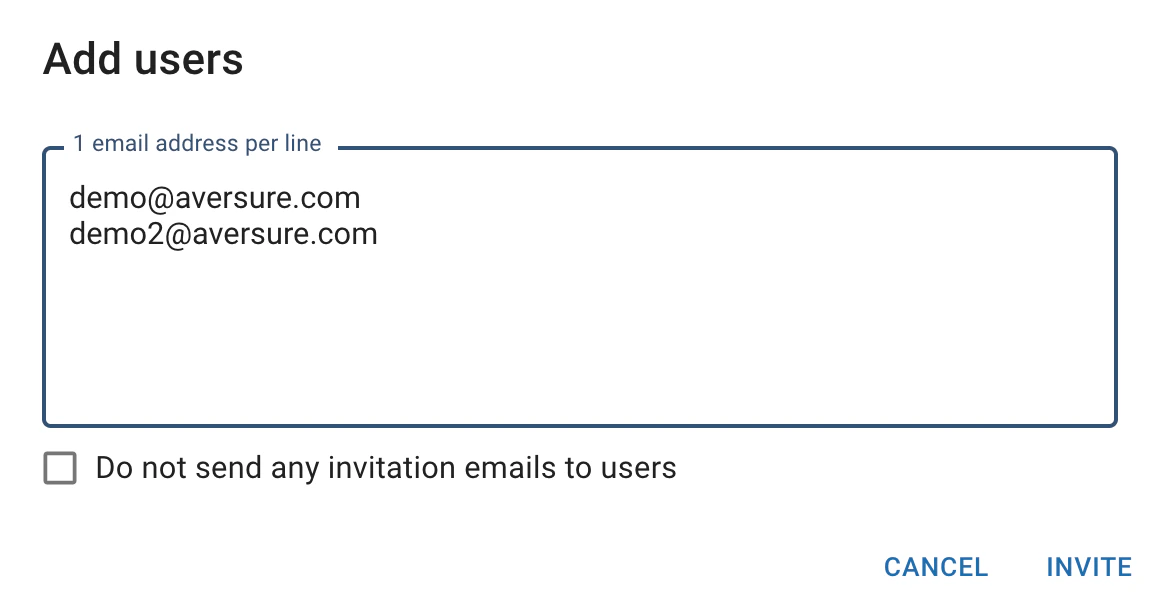 6. The Service will send an invitation email to the users. If they do not have a user account, the email will include a link to create an account.
To move users between user groups (e.g. to restrict their access to some information in a data room), just invite them to the new group. They are automatically removed from the old group. If you don't want to send an invitation email to the users, tick the **Do not send any invitation emails to users** checkbox.
## Removing users
1. In the **Administration Interface**, go to the **User Rights** page.
2. Select the **Data room** in the drop-down box in the header.
3. Select the **User group** in the next drop-down box.
4. Click the **Remove** button next to the user that you would like to remove.
6. The Service will send an invitation email to the users. If they do not have a user account, the email will include a link to create an account.
To move users between user groups (e.g. to restrict their access to some information in a data room), just invite them to the new group. They are automatically removed from the old group. If you don't want to send an invitation email to the users, tick the **Do not send any invitation emails to users** checkbox.
## Removing users
1. In the **Administration Interface**, go to the **User Rights** page.
2. Select the **Data room** in the drop-down box in the header.
3. Select the **User group** in the next drop-down box.
4. Click the **Remove** button next to the user that you would like to remove.
 ## Adding user groups
1. In the **Administration Interface**, go to the **User Rights** page.
2. Select the **Data room** in the drop-down box in the header.
3. Click on the **Add group** button.
4. Enter the name of the new user group and confirm the creation in the dialog that appears.
## Adding user groups
1. In the **Administration Interface**, go to the **User Rights** page.
2. Select the **Data room** in the drop-down box in the header.
3. Click on the **Add group** button.
4. Enter the name of the new user group and confirm the creation in the dialog that appears.
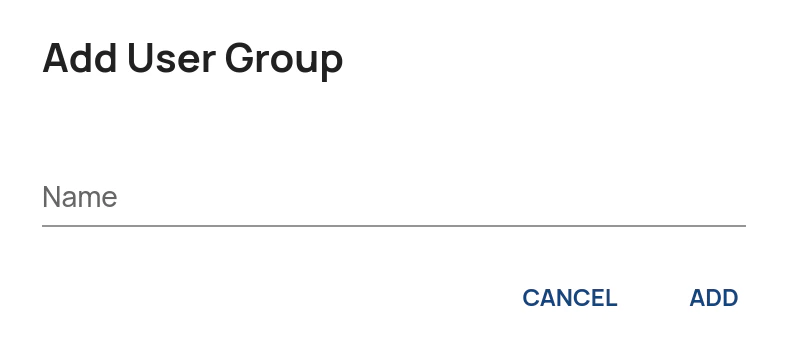 A newly created user group has basic read rights for the whole data room.