> ## Documentation Index
> Fetch the complete documentation index at: https://docs.aversure.com/llms.txt
> Use this file to discover all available pages before exploring further.
# Downloading files and folders
> How to download individual files, folders, and entire data rooms
## Downloading a single file
Click on the file name to open or download the file.
If the file opens in the browser and you would rather download it, right-click on the file name and select **Save link as**.
## Downloading a folder
1. Select the folder in the folder tree (Standard Data Rooms) or navigate to it (Light Data Rooms).
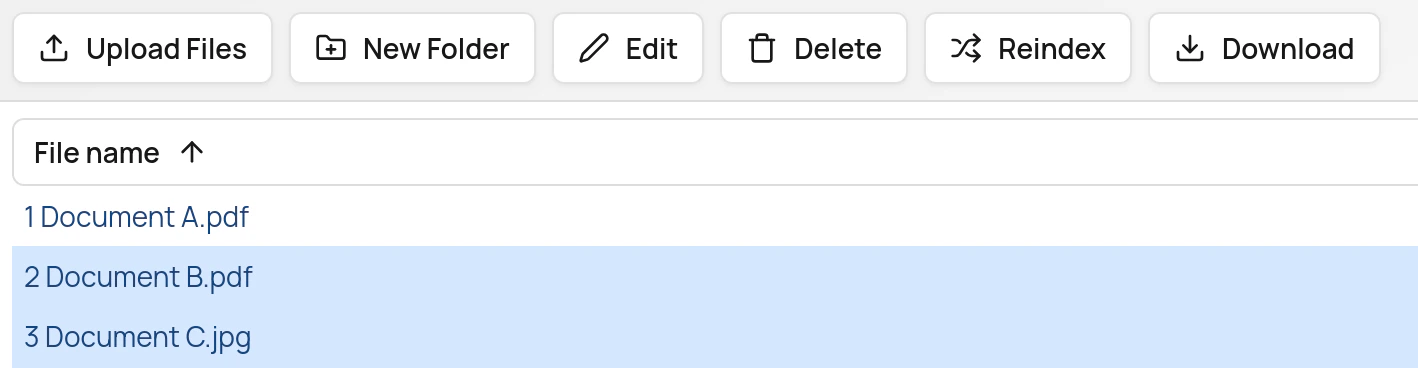
2. Click on the **Download** button in the top menu.
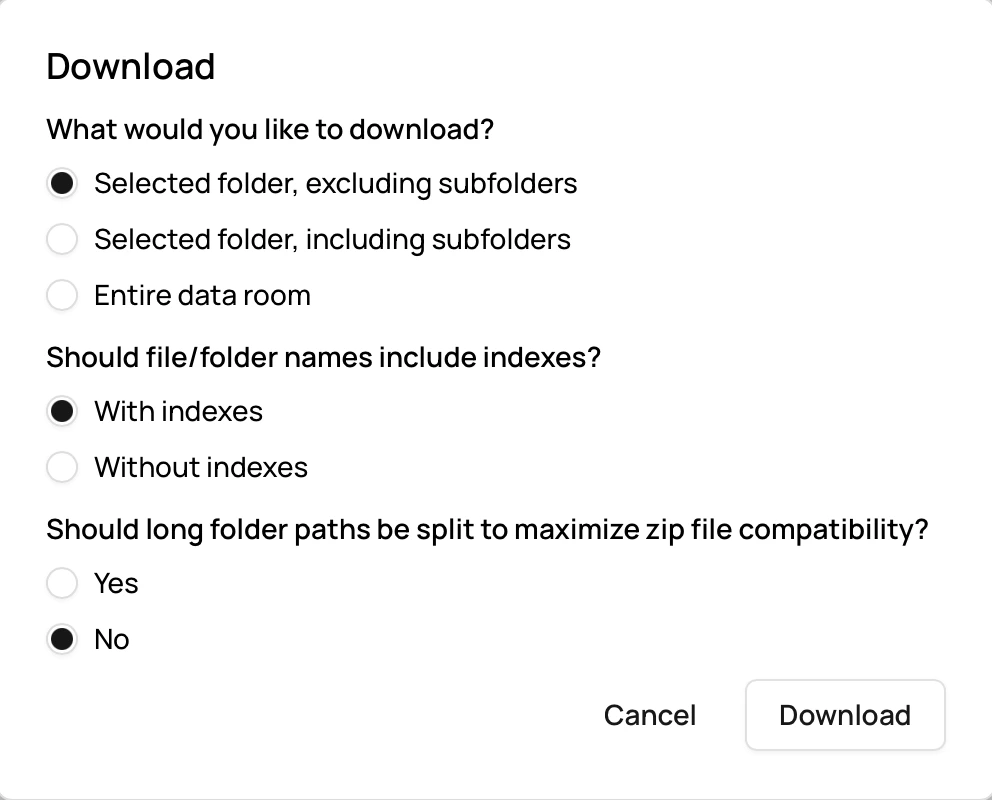
3. In the dialog that appears, choose if subfolders should be included or not.
You may also choose if you would like to download with or without indexes as part of the file/folder names and if long paths should be split.
Click on **Download.**
Subfolders may only be included if the user has been [enabled](/users-and-user-rights/customizing-user-rights#downloading-the-whole-data-room) to download the entire data room.
 4. Wait for the zip file to be created and the download to complete.
## Downloading multiple files
This feature is only available in Standard Data Rooms.
1. Select multiple files by clicking on the file rows (not directly on the file names) while holding down `Shift` or `Ctrl` (`Cmd` on Mac).
4. Wait for the zip file to be created and the download to complete.
## Downloading multiple files
This feature is only available in Standard Data Rooms.
1. Select multiple files by clicking on the file rows (not directly on the file names) while holding down `Shift` or `Ctrl` (`Cmd` on Mac).
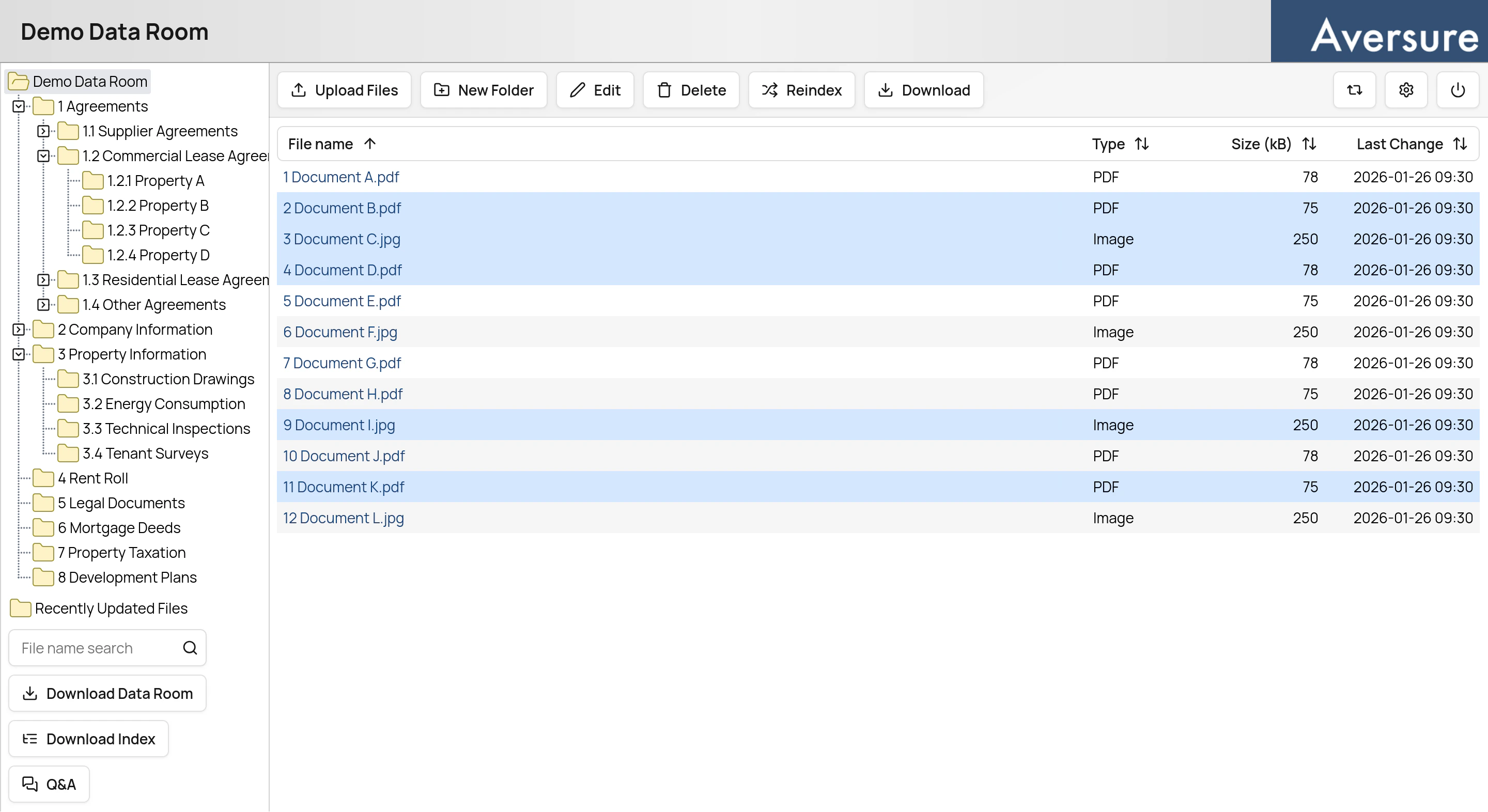 Click on the **Download** button in the top menu.
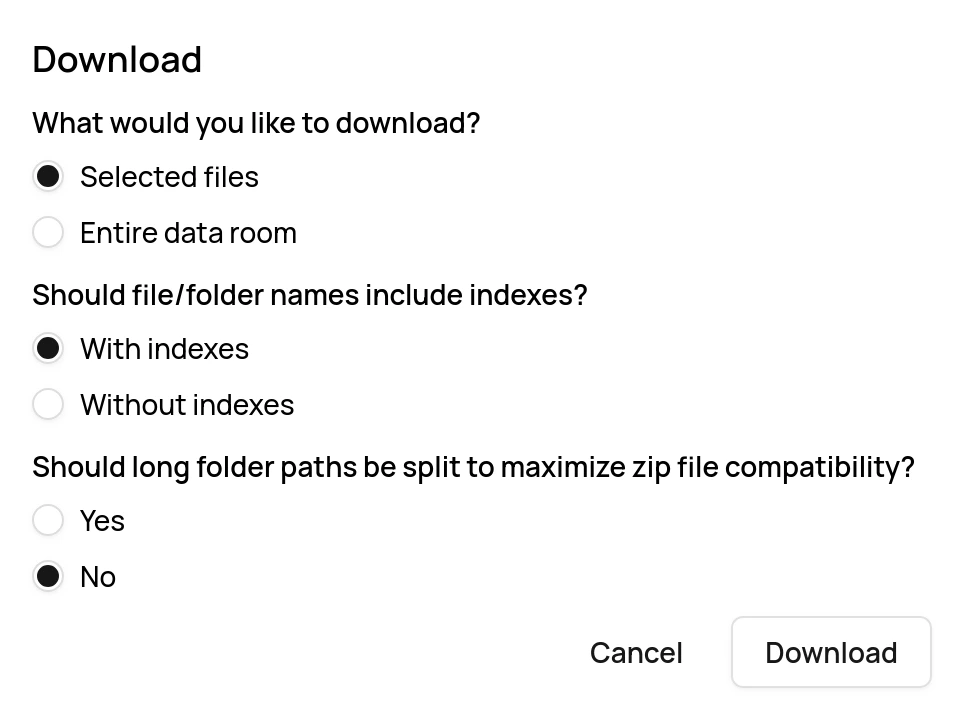
2. Select **Selected files** and choose if you would like to download with or without indexes as part of the file names. There is also an option to split long folder paths. This option is explained [here](/using-the-service/opening-large-zip-files#splitting-long-paths).
Click on **Download.**
Click on the **Download** button in the top menu.
2. Select **Selected files** and choose if you would like to download with or without indexes as part of the file names. There is also an option to split long folder paths. This option is explained [here](/using-the-service/opening-large-zip-files#splitting-long-paths).
Click on **Download.**
 3. Wait for the files to be downloaded as a single zip file.
It may take some time to create a zip file containing a large number of files.
## Downloading entire data rooms
Only Administrators are initially able to download entire data rooms, but this feature can be [enabled](/users-and-user-rights/customizing-user-rights#downloading-the-whole-data-room) for other user groups as well.
If a user doesn't have access to the entire data room, the user will only be able to download the portions of the data room that they have access to.
### Inside the data room
1. In the left pane underneath the folder tree, click on **Download Data Room** or the **Download** button in the top menu.
2. Select the **Entire data room** option.
Click on **Download**.
3. Wait for the files to be downloaded as a single zip file.
It may take some time to create a zip file containing a large number of files.
## Downloading entire data rooms
Only Administrators are initially able to download entire data rooms, but this feature can be [enabled](/users-and-user-rights/customizing-user-rights#downloading-the-whole-data-room) for other user groups as well.
If a user doesn't have access to the entire data room, the user will only be able to download the portions of the data room that they have access to.
### Inside the data room
1. In the left pane underneath the folder tree, click on **Download Data Room** or the **Download** button in the top menu.
2. Select the **Entire data room** option.
Click on **Download**.
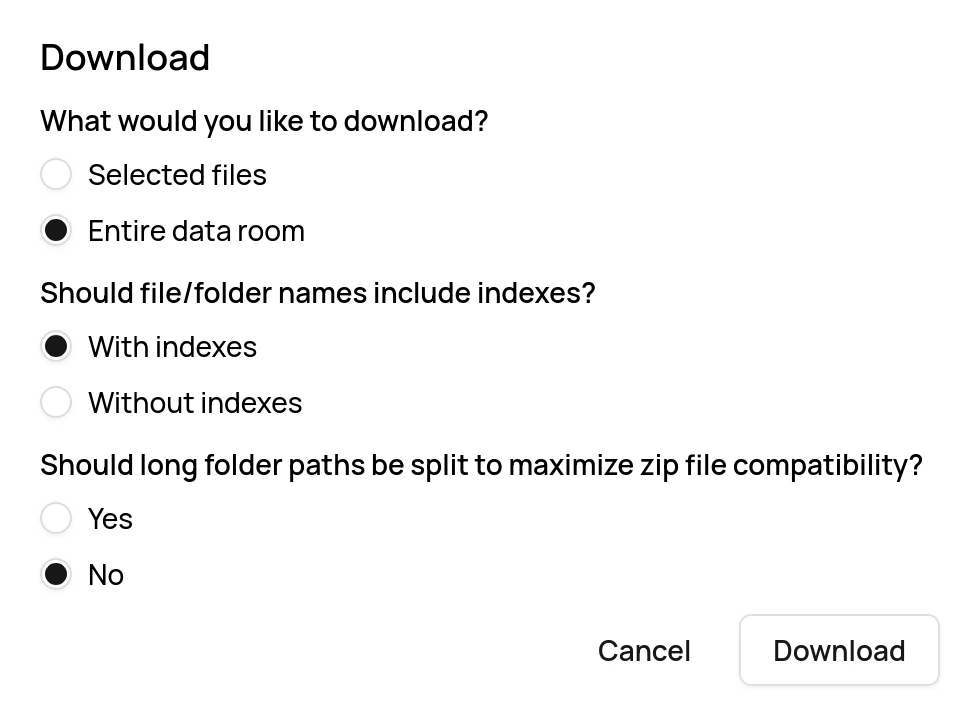 3. Choose if you want to include indexes in the file/folder names or if you want to [split long paths](/using-the-service/opening-large-zip-files#splitting-long-paths).
4. Wait until the zip file has been created and the download has been completed.
Not all zip clients can open large or complex zip files. See [Opening large zip files](/using-the-service/opening-large-zip-files) for solutions.
### In the Administration Interface
1. Go to the **Data Rooms** page.
3. Choose if you want to include indexes in the file/folder names or if you want to [split long paths](/using-the-service/opening-large-zip-files#splitting-long-paths).
4. Wait until the zip file has been created and the download has been completed.
Not all zip clients can open large or complex zip files. See [Opening large zip files](/using-the-service/opening-large-zip-files) for solutions.
### In the Administration Interface
1. Go to the **Data Rooms** page.
 2. Click on **Download as zip** for the data room in question.
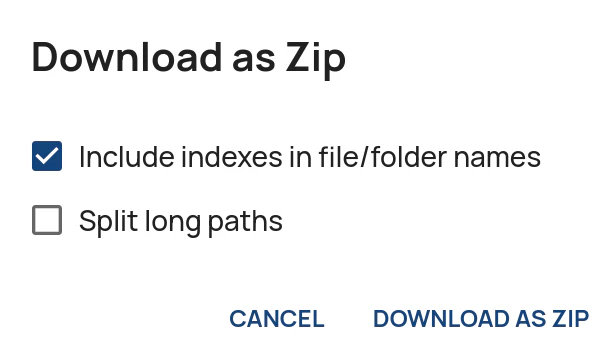
3. Choose if you want to include indexes in the file/folder names or if you want to [split long paths](/using-the-service/opening-large-zip-files#splitting-long-paths).
Click on **Download as zip**.
2. Click on **Download as zip** for the data room in question.
3. Choose if you want to include indexes in the file/folder names or if you want to [split long paths](/using-the-service/opening-large-zip-files#splitting-long-paths).
Click on **Download as zip**.
 4. Wait until the zip file has been created and the download has been completed.