> ## Documentation Index
> Fetch the complete documentation index at: https://docs.aversure.com/llms.txt
> Use this file to discover all available pages before exploring further.
# Managing files and folders
> Moving, renaming, and deleting files and folders
## Moving files and folders
This feature is only available in Standard Data Rooms.
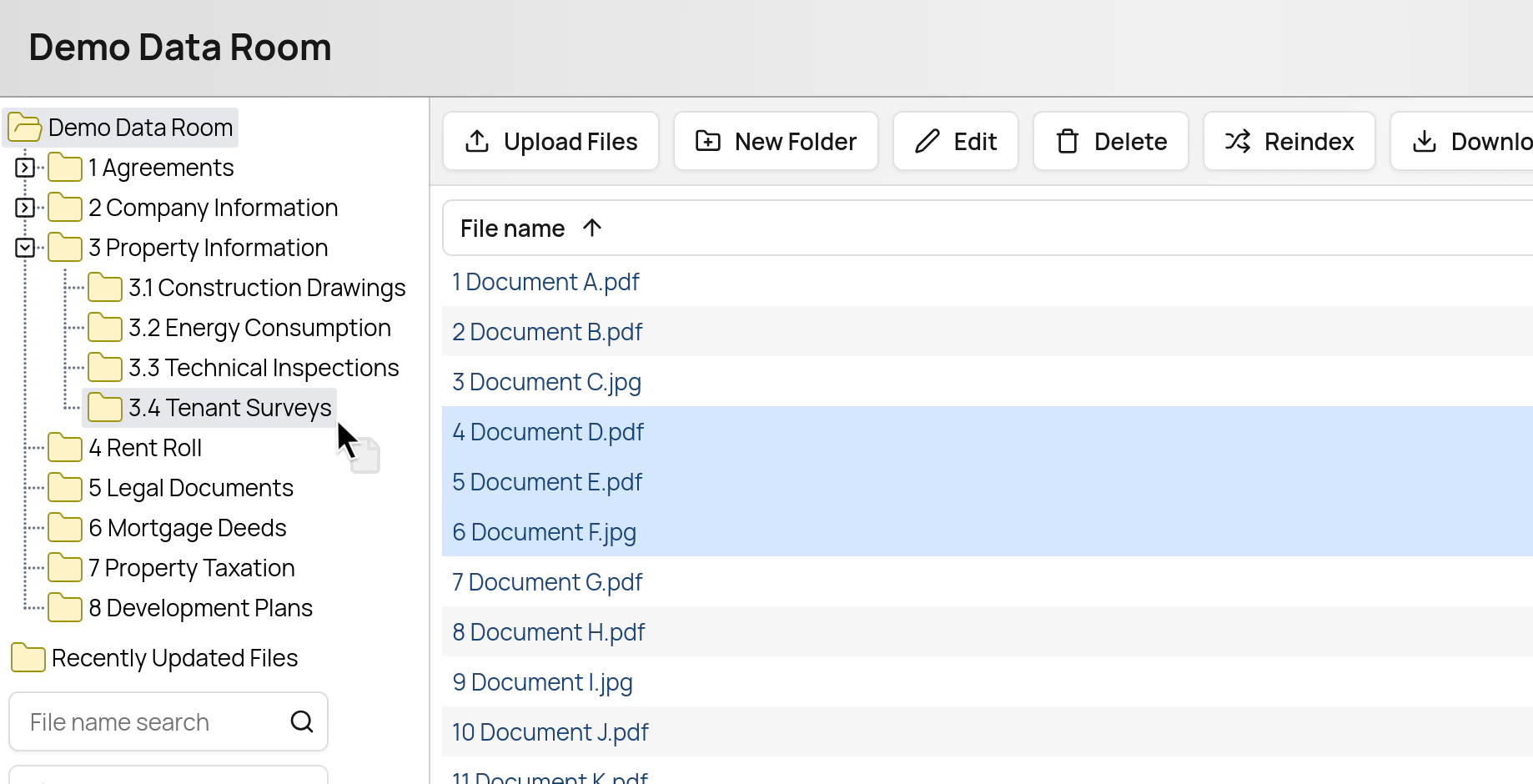
1. Select a folder or a file and drag it to the folder you would like to move it to.
2. Click on the **Move** button in the dialog box that appears.
You can move multiple files in a single operation. Select multiple files by clicking on the file rows (not directly on the file names) while holding `Shift` or `Ctrl` (`Cmd` on Mac).
 ## Copying files and folders
Copying files and folders is restricted to data room administrators. To copy between data rooms, you must be an administrator of both the source and the destination data room.
How user rights are handled when copying:
* Folders copied **within a data room** — user rights set on the folder (and on its subfolders) are copied along with it.
* Folders copied **between data rooms** — user rights are not copied; the copied folder inherits the rights of the destination folder.
* Files (in either case) — take on the rights of the destination folder, since user rights are set on folders, not on files.
Only user rights explicitly set on the copied folders are copied along with the folders. Folders whose rights are set to "Default" continue to inherit their rights from their new parent folder, i.e., the destination folder.
### Within a Standard Data Room
1. Select a folder or a file and drag it to the folder you would like to copy it to.
2. Click on the **Copy** button in the dialog box that appears.
When both moving and copying are available for the same drag, the dialog is titled **Move or copy** and shows both a **Move** and a **Copy** button. Click **Copy** to copy the files or folders.
### Within a Light Data Room
Copying is only available when dragging between two separate browser windows or tabs of the data room. Within a single window the drag gesture is not used for copying.
### Between Data Rooms
To copy files or folders from one data room to another, open the two data rooms in two separate browser windows or tabs and drag from one to the other. Click on the **Copy** button in the dialog box that appears.
## Editing file/folder names and indexes
### Standard Data Rooms
1. Select a file or folder.
2. Click on the **Edit** button in the top menu.
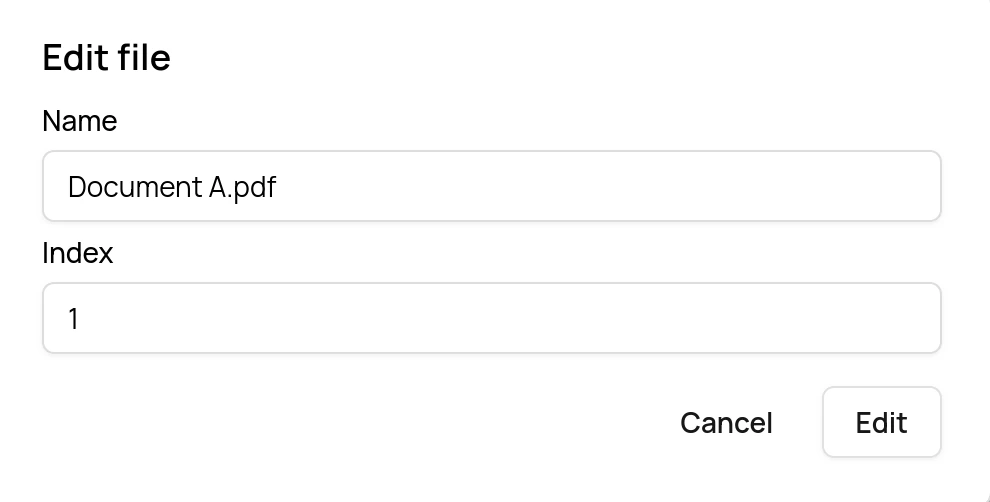
3. Edit the name and/or the index in the dialog box that appears.
4. Click the **Edit** button in the dialog box.
## Copying files and folders
Copying files and folders is restricted to data room administrators. To copy between data rooms, you must be an administrator of both the source and the destination data room.
How user rights are handled when copying:
* Folders copied **within a data room** — user rights set on the folder (and on its subfolders) are copied along with it.
* Folders copied **between data rooms** — user rights are not copied; the copied folder inherits the rights of the destination folder.
* Files (in either case) — take on the rights of the destination folder, since user rights are set on folders, not on files.
Only user rights explicitly set on the copied folders are copied along with the folders. Folders whose rights are set to "Default" continue to inherit their rights from their new parent folder, i.e., the destination folder.
### Within a Standard Data Room
1. Select a folder or a file and drag it to the folder you would like to copy it to.
2. Click on the **Copy** button in the dialog box that appears.
When both moving and copying are available for the same drag, the dialog is titled **Move or copy** and shows both a **Move** and a **Copy** button. Click **Copy** to copy the files or folders.
### Within a Light Data Room
Copying is only available when dragging between two separate browser windows or tabs of the data room. Within a single window the drag gesture is not used for copying.
### Between Data Rooms
To copy files or folders from one data room to another, open the two data rooms in two separate browser windows or tabs and drag from one to the other. Click on the **Copy** button in the dialog box that appears.
## Editing file/folder names and indexes
### Standard Data Rooms
1. Select a file or folder.
2. Click on the **Edit** button in the top menu.
3. Edit the name and/or the index in the dialog box that appears.
4. Click the **Edit** button in the dialog box.
 If a user does not have write privileges for the folder, the **Edit** button will not appear.
You can also change file or folder indexing through **[Drag & drop reordering](/using-the-service/reordering-and-reindexing).**
### Light Data Rooms
1. Click on the button with a pencil that is shown when hovering over a file or folder.
If a user does not have write privileges for the folder, the **Edit** button will not appear.
You can also change file or folder indexing through **[Drag & drop reordering](/using-the-service/reordering-and-reindexing).**
### Light Data Rooms
1. Click on the button with a pencil that is shown when hovering over a file or folder.
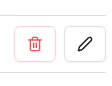 2. Edit the name and click on the **Rename** button to confirm.
## Deleting files or folders
### Standard Data Rooms
1. Select a folder or one or more files.
2. Click on the **Delete** button in the top menu.
3. Confirm the deletion in the dialog box that appears.
### Light Data Rooms
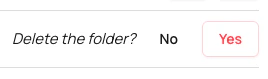
1. Click on the button with a trash can that is shown when hovering over a file or folder.
2. Confirm the deletion by clicking on the **Yes** button.
2. Edit the name and click on the **Rename** button to confirm.
## Deleting files or folders
### Standard Data Rooms
1. Select a folder or one or more files.
2. Click on the **Delete** button in the top menu.
3. Confirm the deletion in the dialog box that appears.
### Light Data Rooms
1. Click on the button with a trash can that is shown when hovering over a file or folder.
2. Confirm the deletion by clicking on the **Yes** button.
 ## Restoring deleted files or folders
This feature is only available in Standard Data Rooms. It requires data room administrator rights.
Deletions become permanent only after the data room has been deleted and the recovery period has expired. Until then, administrators can restore deleted files and folders directly from the data room.
### Viewing deleted items
1. Click the **Settings** button in the top menu.
2. Tick the **Show deleted files and folders** checkbox.
Deleted files and folders appear alongside active items at reduced opacity.
While deleted items are shown, drag-and-drop reordering is disabled.
### Restoring items
1. Make sure deleted items are visible (see above).
2. Click the name of a deleted file or folder.
3. Confirm the restore in the dialog that appears.
Files are restored immediately. Folders and their contents are restored in the background — a progress dialog is shown while the operation completes.
If a name conflict exists with an active file or folder, the restored item is renamed with a "(restored)" suffix.
### Finding deleted items
You can also find a list of deleted files on the [**Statistics**](/administrating-data-rooms/statistics) page of the **Administration Interface**.
## Restoring deleted files or folders
This feature is only available in Standard Data Rooms. It requires data room administrator rights.
Deletions become permanent only after the data room has been deleted and the recovery period has expired. Until then, administrators can restore deleted files and folders directly from the data room.
### Viewing deleted items
1. Click the **Settings** button in the top menu.
2. Tick the **Show deleted files and folders** checkbox.
Deleted files and folders appear alongside active items at reduced opacity.
While deleted items are shown, drag-and-drop reordering is disabled.
### Restoring items
1. Make sure deleted items are visible (see above).
2. Click the name of a deleted file or folder.
3. Confirm the restore in the dialog that appears.
Files are restored immediately. Folders and their contents are restored in the background — a progress dialog is shown while the operation completes.
If a name conflict exists with an active file or folder, the restored item is renamed with a "(restored)" suffix.
### Finding deleted items
You can also find a list of deleted files on the [**Statistics**](/administrating-data-rooms/statistics) page of the **Administration Interface**.