> ## Documentation Index
> Fetch the complete documentation index at: https://docs.aversure.com/llms.txt
> Use this file to discover all available pages before exploring further.
# Reordering and reindexing
> Reordering files and folders by drag and drop and reindexing a data room
This feature is only available in Standard Data Rooms.
In addition to changing the indexes of files and folders manually, they can be changed via reordering and reindexing.
**Reordering** refers to the manual movement of files and folders in the file list or folder tree.
**Reindexing** refers to the automatic adjustment of indexes in a single folder, a folder with all its subfolders or the entire data room.
## Reordering files and folders
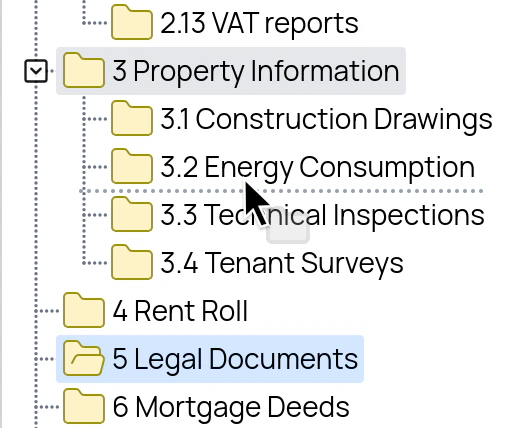
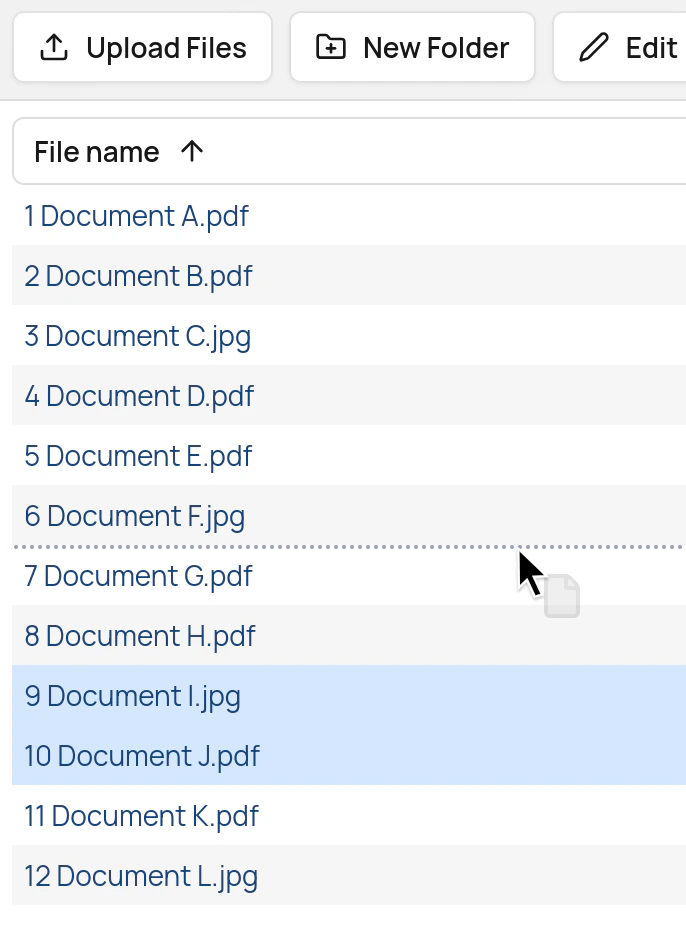
Files and folders can be reordered by dragging them in the file list or the folder tree.
When a file or folder is dropped, a **Confirm Reordering** dialog appears. Click on the **Reorder** button to apply the new ordering, or **Cancel** to leave the ordering unchanged. Multiple files may be selected by using the `Shift` key or the `Ctrl` key (`Cmd` on Mac).
All users with write rights in a folder are able to reorder the contents of the folder.
## Reindexing a folder or the whole data room
To close index gaps or order files and folders alphabetically, use the **Reindex** button in the top menu.
You can reindex a single folder, a folder with all its subfolders or the entire data room.
 To reindex the entire data room, select the top folder of the data room, click the **Reindex** button and set **Target** to *Current folder and subfolders.* To reindex only parts of the data room, select a folder deeper in the folder tree instead.
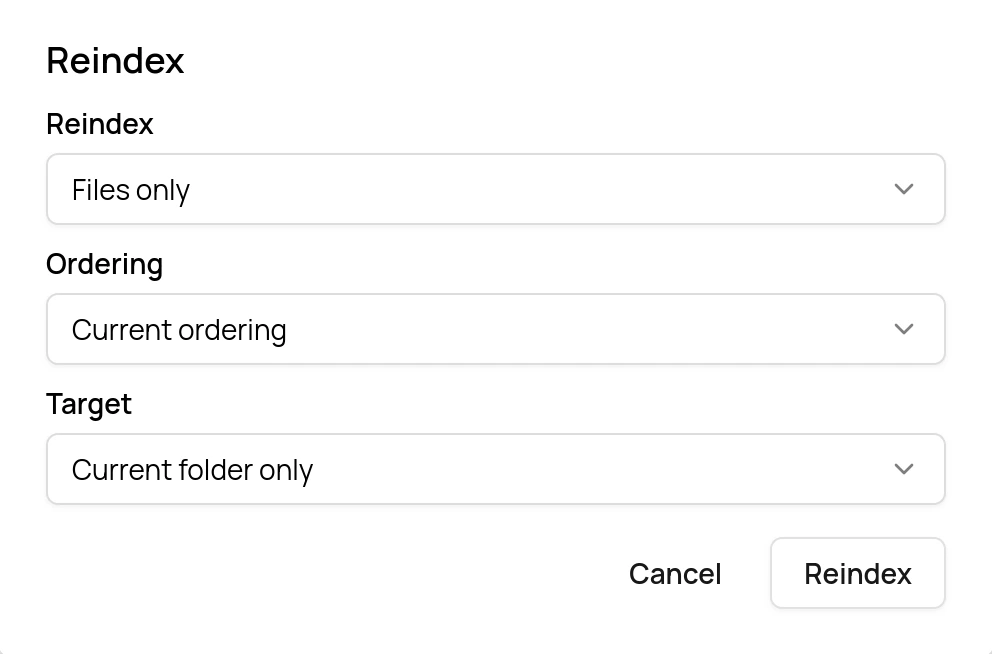 The reindexing operation is irreversible and can change the whole ordering (and thus the index structure) of a data room. The **Reindex** button is therefore available to administrators only.