Setting a password the first time
The first time a user is invited to the Service, they will receive an email with a link to set their password. The password that they set for their account will be used to access all data rooms that they have been invited to. If a user has already set a password, later invitations will not include a link to set the password. If a user has forgotten their password, they may reset it.Resetting the password
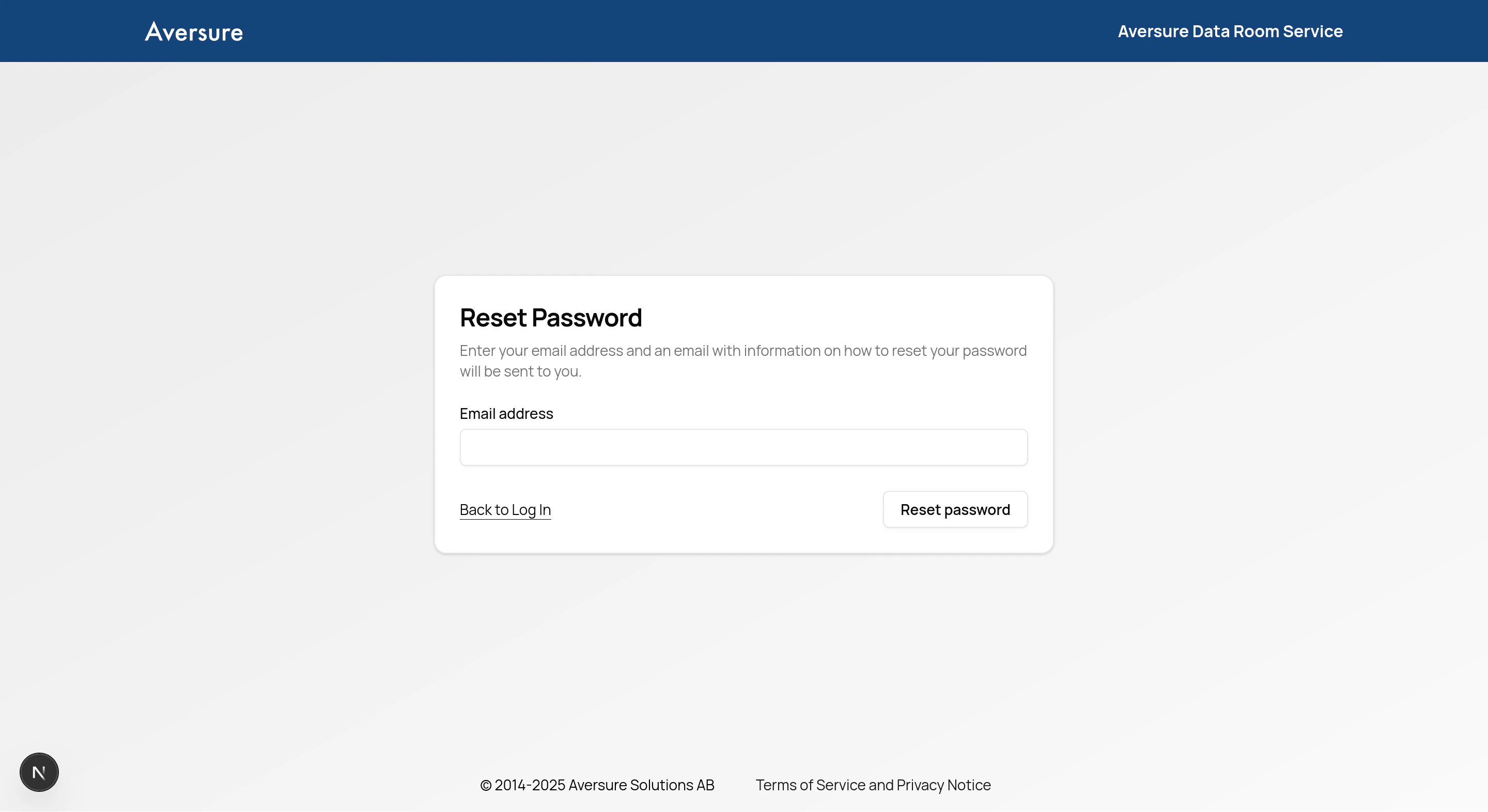
- Go to the login page.
- Click on Forgotten your password?
- Enter your email address and click on Reset password.
- Follow the instructions in the email to set a new password for the account.
Changing the password
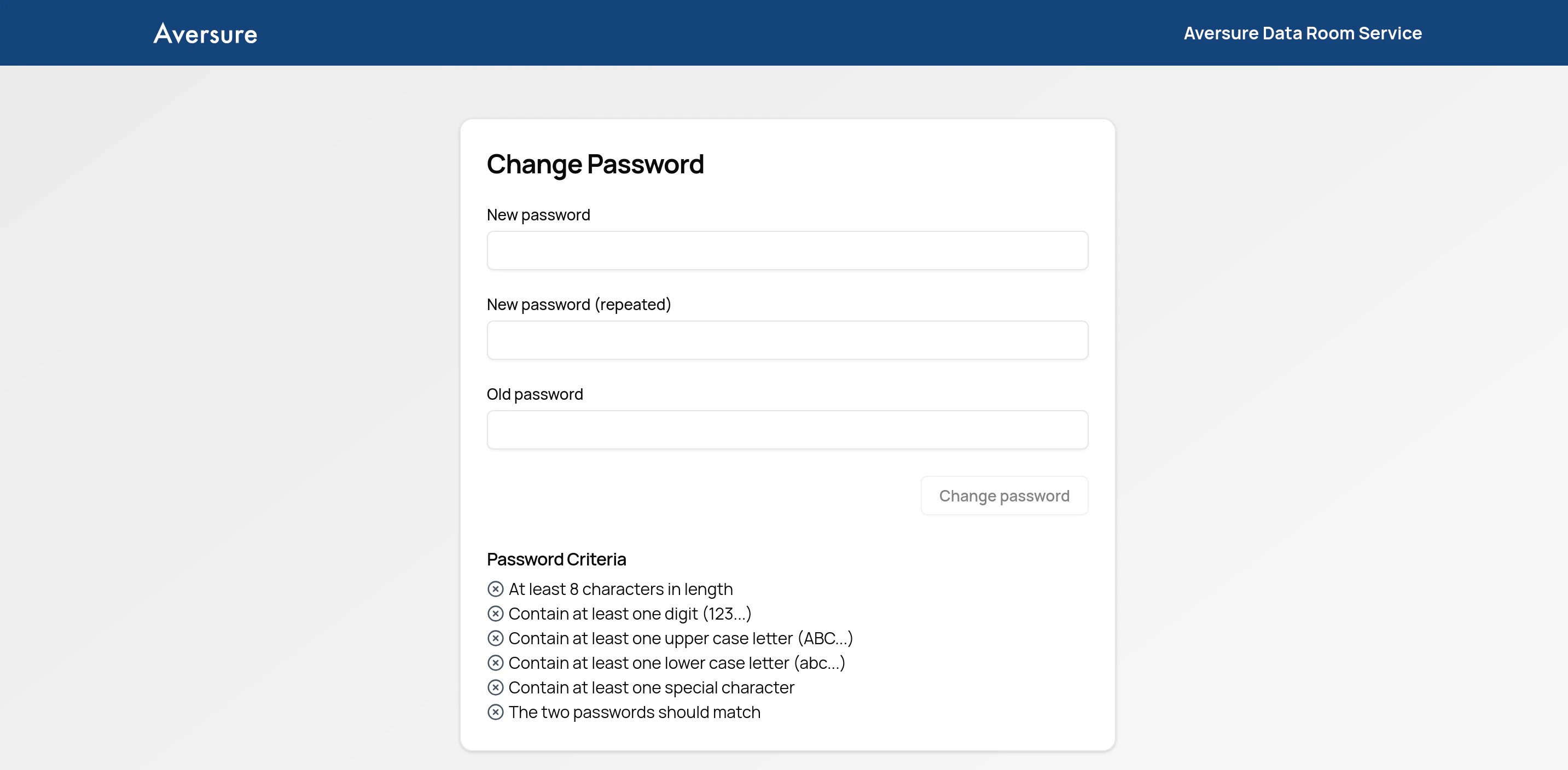
- Click on the Settings button in the top right corner of the data room.
- Click on the link Click to update under the Password and security settings heading.
- Enter your new and old password to confirm.
Two-factor authentication
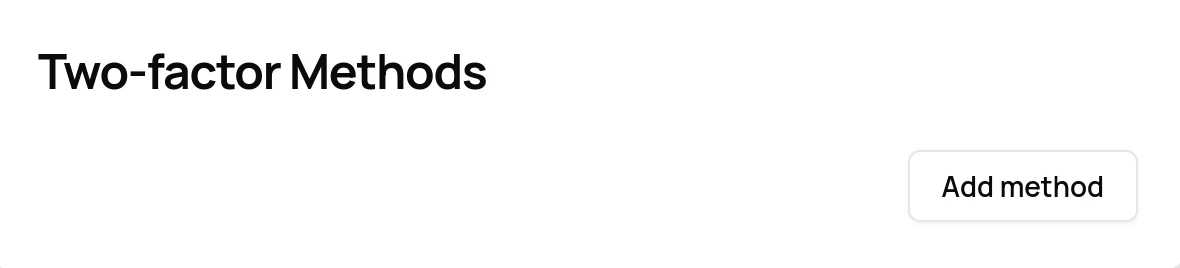
The Service supports multiple methods for two-factor authentication. To add or remove a method:- Click on the Settings button in the top right corner of the data room.
- Click on the link Click to update under the Password and security settings heading.
- Scroll down to the heading Two-factor Methods and add or remove a method.