
- Click on the Create Data Room button.
- Enter the information that is requested in the dialog that appears (see below for a description of each field).
- Click on Create new Data Room.
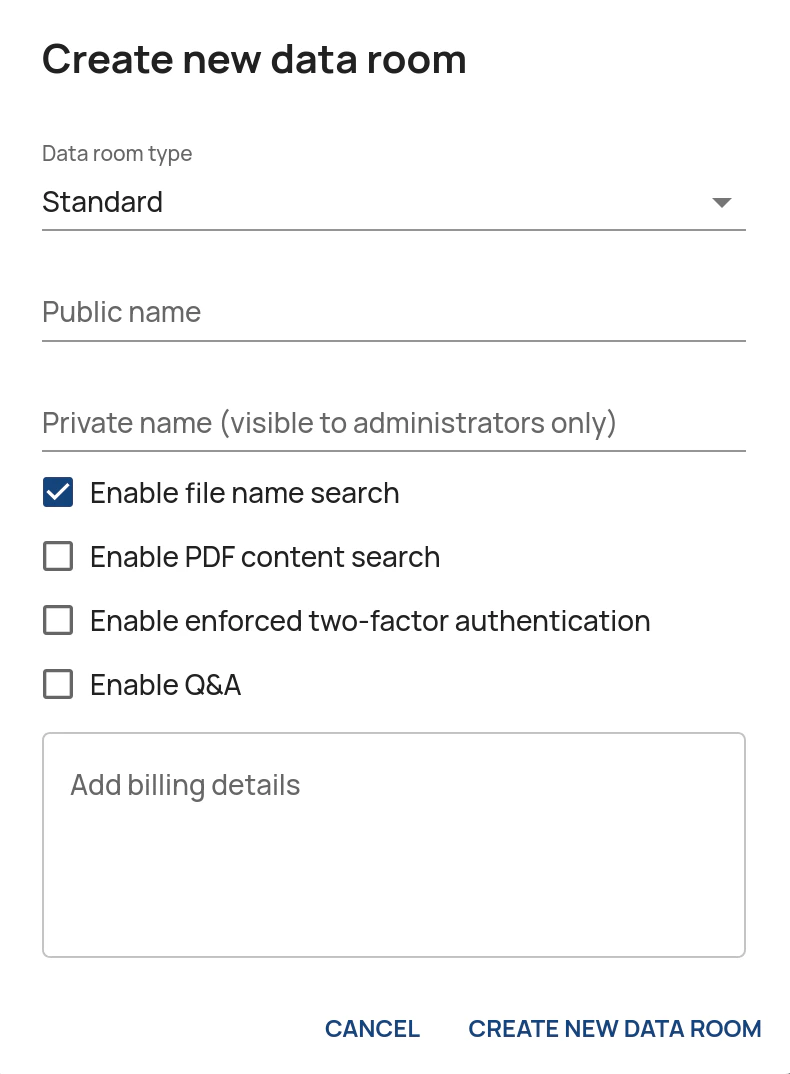
- Data room type: Standard or Light. More information about the two types of data rooms.
- Public name: a name which is visible to all users invited to the data room.
- Private name: a name which is only visible to the administrators of the data room (in addition to the public name). May be left blank.
- Enable file name search: allows users to search for file names in the data room.
- Enable PDF content search: allows users to search the contents of PDFs, including scanned files.
- Enable enforced two-factor authentication: enables enforced two-factor authentication when users are invited on the User rights page.
- Enable Q&A: Enables the integrated Q&A.
- Billing details: Additional information that will be added to the invoice for the data room. May not be visible to all users (depending on the type of agreement).
If the button is not visible, you do not have privileges to create data rooms. Contact us to request this functionality.