Uploading files
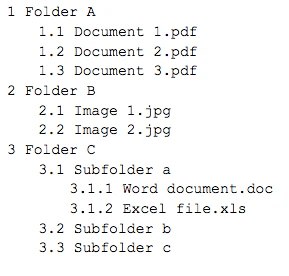
Files may either be uploaded by using the Upload file button or by dragging them directly from the desktop or the Windows Explorer/Mac Finder into the web browser. To replace a file, upload a new file with the same name and the old file will be replaced. The Service does not support files or folders with duplicate names (in the same folder).Using the Upload file button
- Click on the Upload file button.
- Select the files you would like to upload.
- Wait for the upload operation to complete.

Upload by dragging files into the web browser
- Select files on the desktop or in the Windows Explorer (or in the Mac Finder).
- Drag them into the web browser.
- Release them on the file list to upload them to the currently active folder or on a folder in the folder tree to upload them to a different folder (Standard Data Rooms only).
- Wait for the upload operation to complete.
Uploading folder structures
In addition to uploading individual files, most modern browsers support uploading whole folder structures.- Select the folders you would like to upload and drag them into the browser window.
- The Service automatically scans the subfolders for further files and folders.
- You can track the progress of the upload through the status indicator at the lower right of the data room browser window.
- If any error occurs during the upload, a dialog stating the error will appear.
Uploading the contents of a zip file
When you upload a single zip file — either by dragging it into the browser or by selecting it through the Upload File button — the Service asks whether you want to upload the zip file itself or extract it and upload its contents.- Drop a single
.zipfile on the file list or on a folder in the folder tree (Standard Data Rooms only), or select a single.zipfile through the Upload File button. - In the dialog that appears, choose Extract and Upload Contents to extract the zip file, or Upload as Single File to keep the zip file intact.
- If you choose to extract, the Service reads the archive and uploads each file and folder inside it, preserving the folder structure.
- Index detection works the same way as when uploading from the file system.
The prompt only appears when a single zip file is uploaded on its own. Dropping a zip alongside other files, or a folder that contains a zip file, uploads everything as-is without prompting.
Creating folders
Folders may also be created manually inside the data room:- Select the folder in which you would like to create a subfolder.
- Click on the New folder button.
- Enter the folder name in the dialog that appears and click on Create folder.

If you do not have privileges to create folders, the button will not be shown in the interface.
Index format
Indexing is only supported in Standard Data Rooms.
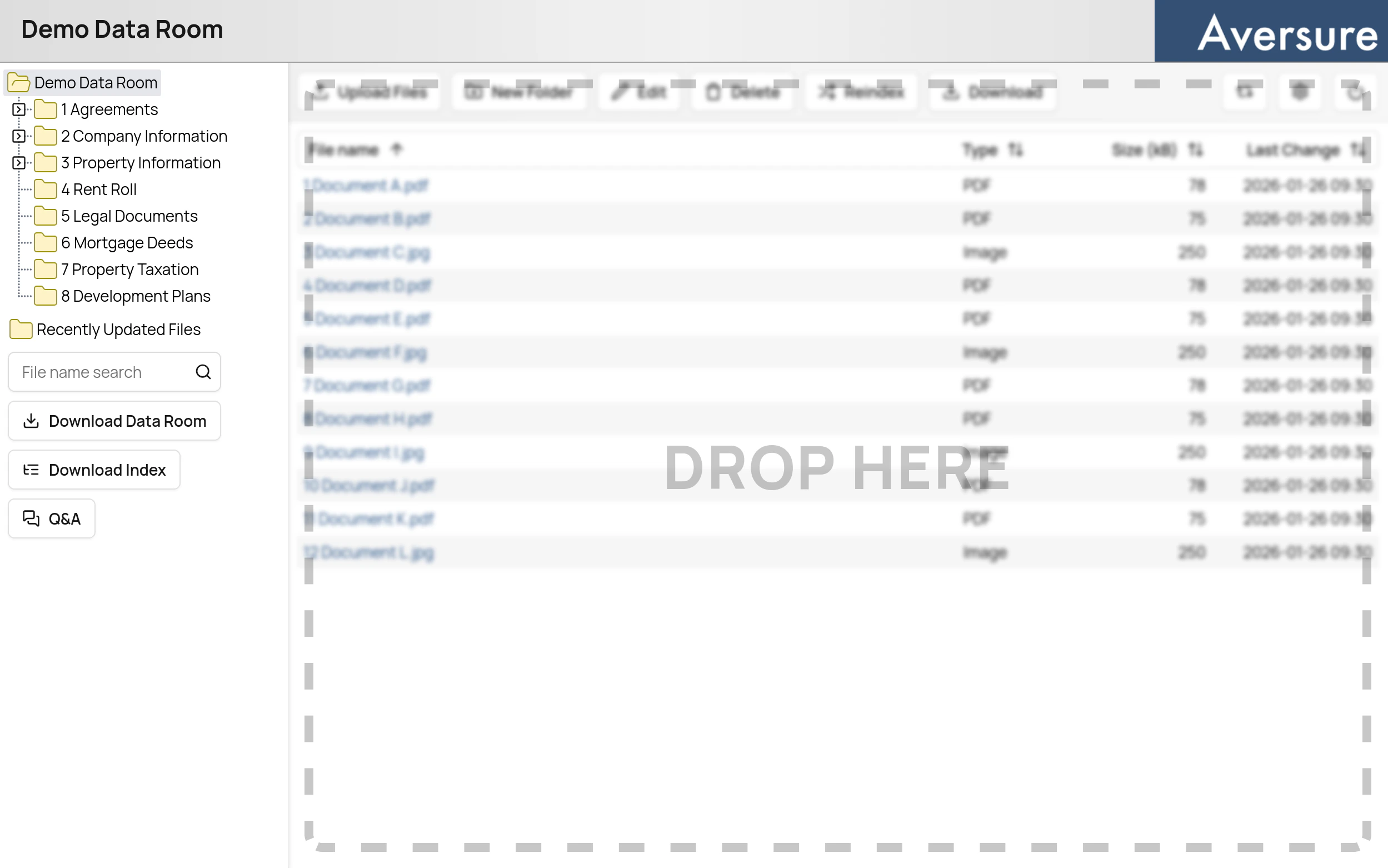
- The index should precede the file or folder name and be separated from the file name with a space ( )
- The parts of the index should be separated with dots (.), as in “1.2.3 Document 1.pdf”
- The index portion of the file name may also contain a trailing dot, as in “1.2.3. Document 1.pdf”
- Only numbers may be used as constituents of the index
- One or more zero digits may precede the index, as in “01.02 Document A.pdf”
The data room does not support duplicate indexes in the same folder (two files may not share the same index).
Index format example