
Viewing statistics
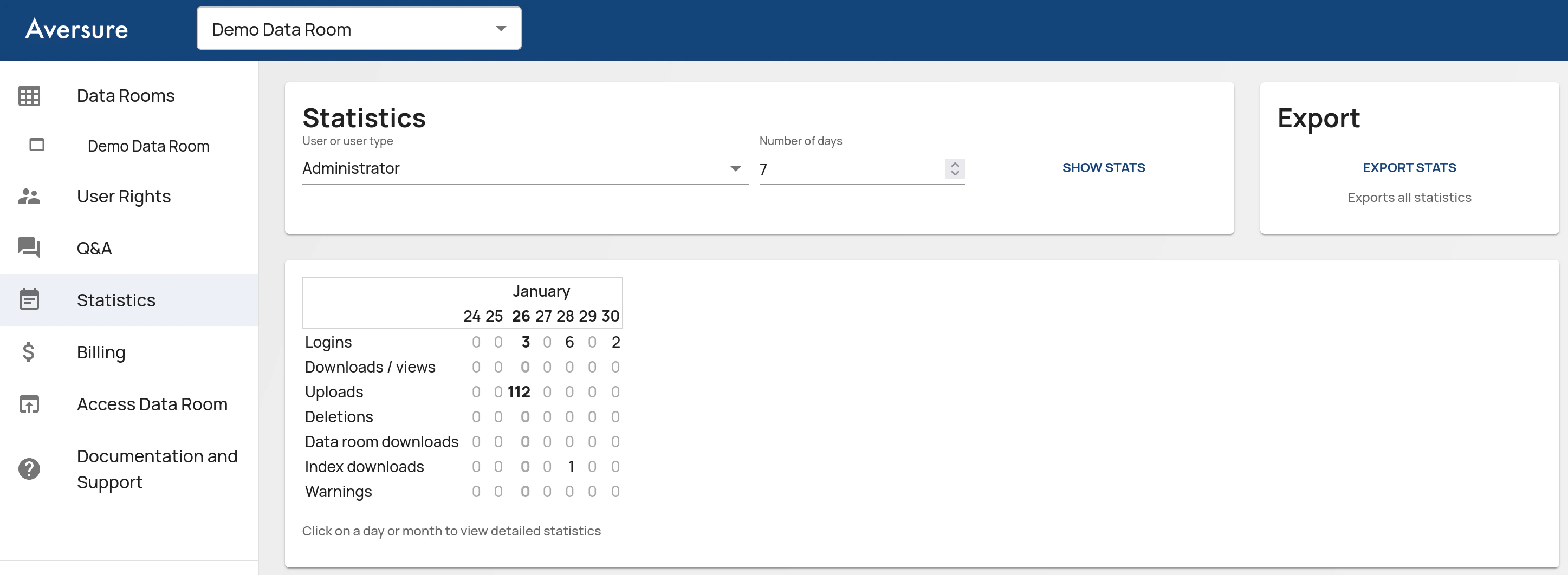
- In the Administration Interface, go to the Statistics page.
- Select the relevant data room in the drop-down box in the header.
- Statistics are by default displayed for the last 30 days. If you want to go further back, enter the number of days in the Number of days field.
- You may filter the statistics to only include statistics for a certain User or User group.
- Click on Show stats to display statistics.
- Click on a day or a month in the table to display detailed statistics.
Exporting statistics
Administrators may export the statistics of a data room through the Administration Interface. To do so:- On the Data Rooms page, click on Export stats to start the export. Alternatively, on the Statistics page, select the relevant data room in the drop-down box and click on Export stats to start the export.
- Wait for the export to be generated.
