
Downloading the whole data room
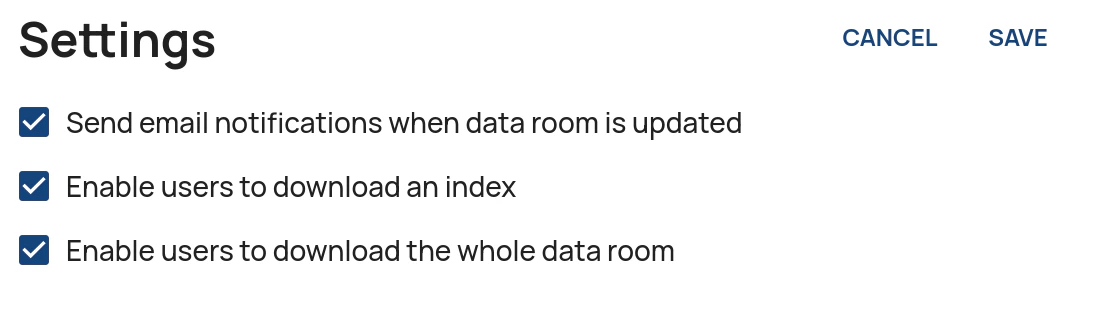
Only administrators are initially able to download the whole data room as a zip file. This setting also controls whether users are able to download a folder (including the subfolders) or just the folder itself (excluding the subfolders). To enable this feature for other user groups:- In the Administration Interface, go to the User Rights page.
- Select the Data room in the drop-down box in the header.
- Select the User group in the next drop-down box.
- Click on Edit in the settings pane.
- Tick or untick the Enable users to download the whole data room checkbox.
-
Click on Save.
A zip file generated by a user will only include the files and folders to which the user has been granted access. Other files and folders will not be included in the zip file.
Downloading an index
To enable or disable user groups to generate an index of the data room:- In the Administration Interface, go to the User Rights page.
- Select the Data room in the drop-down box in the header.
- Select the User group in the next drop-down box.
- Click on Edit in the settings pane.
- Tick or untick the Enable index generation by users checkbox.
- Click on Save.
Folder rights
Access rights to folders are assigned in the Folder rights pane at the bottom of the User Rights page. Rights have initially only been set on the top folder of the data room. Rights cascade downwards from the top folder to the subfolders, unless specific rights have been assigned to a subfolder. Thus, it is often only necessary to set rights on the top folder.Changing folder rights
- In the Administration Interface, go to the User Rights page.
- Select the Data room in the drop-down box in the header.
- Select the User group in the next drop-down box.
- Scroll down to the Folder rights pane.
- Click on the folder for which you would like to change rights.
-
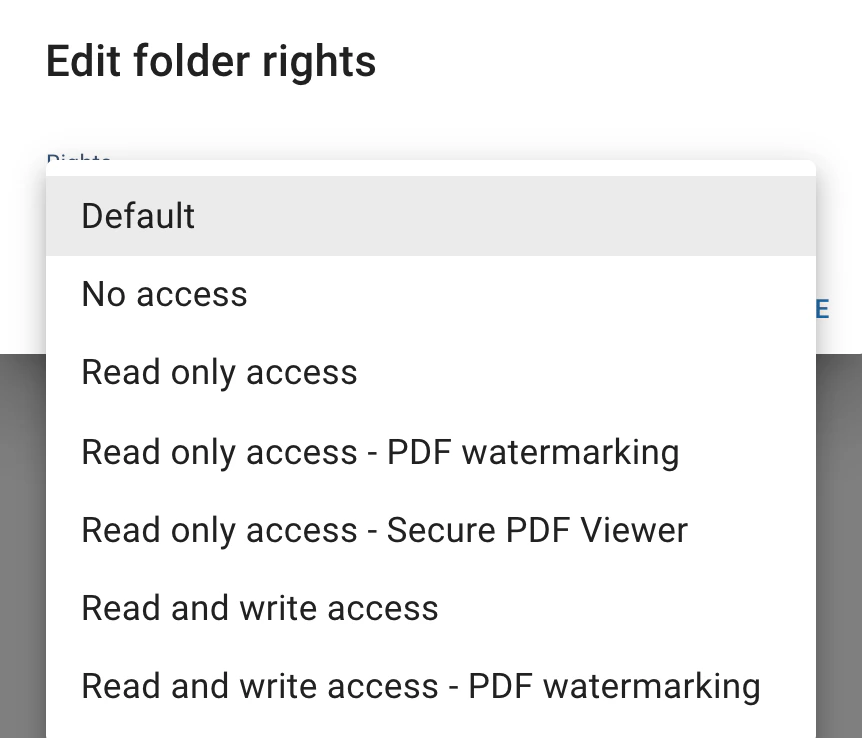
Select the rights and click on Save.
Should you wish to edit the user rights for an entire data room, edit the user rights of the topmost folder.
In order to access a data room, a user needs to have at least read rights set on the top folder of the data room.
Folder right types
- Default: Inherits rights from the parent folder.
- No access: No access to the folder (invisible to the user).
- Read only access: Read access to the folder (including download).
-
Read only access - PDF watermarking: Read access to the folder (including download). PDFs will be watermarked when viewed or downloaded.*
Watermarking example.
Available in Standard Data Rooms only.
-
Read only access - Secure PDF Viewer: Read access to the folder (including download). PDFs will be opened in a secure PDF viewer in the browser and cannot be downloaded or printed.
Available in Standard Data Rooms only.
-
Read only access - Hidden folder: Read access to the folder (including download). The folder will be hidden from the user’s view. This rights type is intended for Light Data Rooms that host a website.
Available in Light Data Rooms only.
- Read and write access: Read and write access to the folder. The user can create folders, upload files, edit existing files and folders as well as delete files and folders.
-
Read and write access - PDF watermarking: Read and write access to the folder. PDFs will be watermarked when viewed or downloaded.*
Available in Standard Data Rooms only.