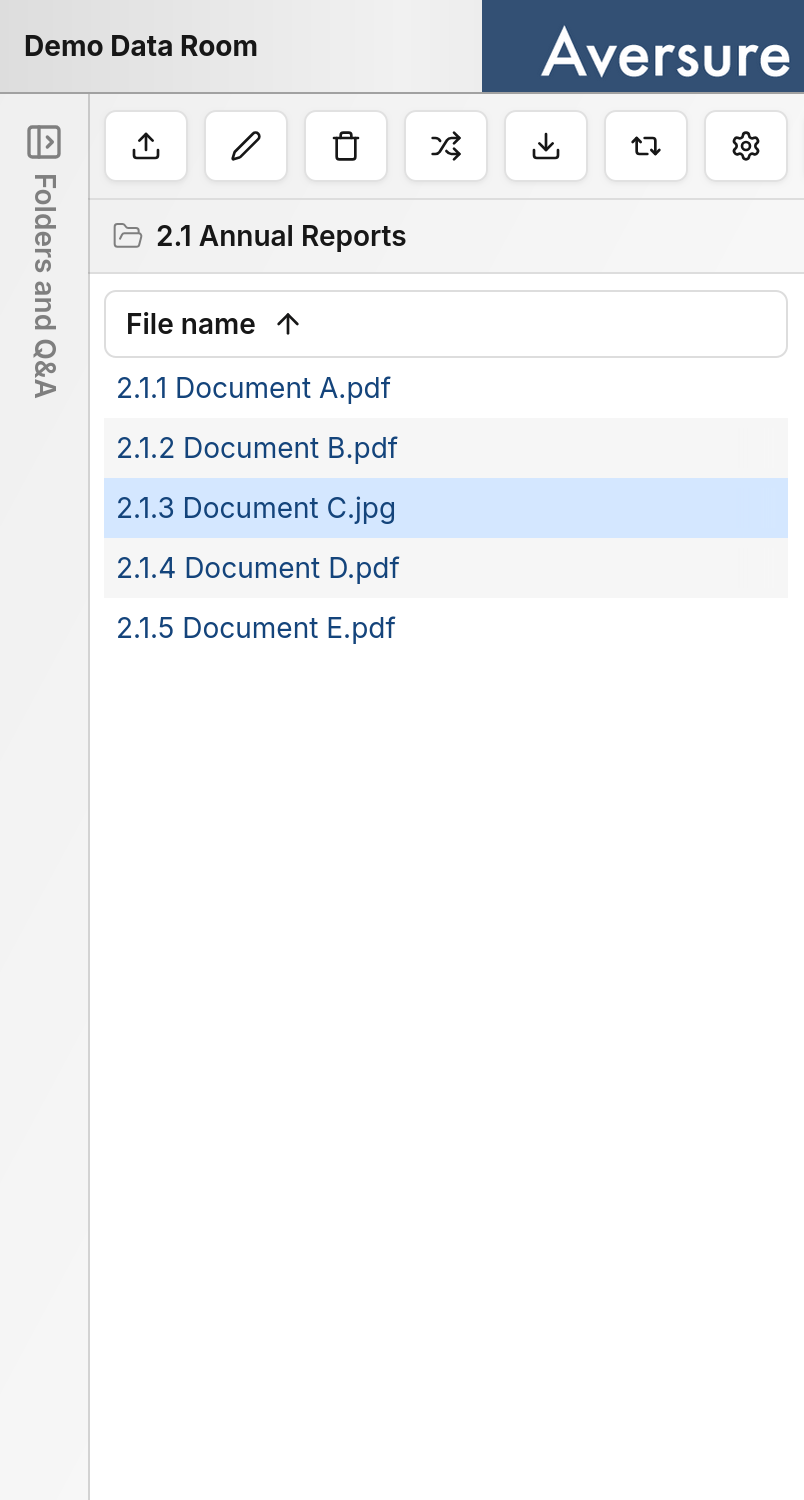
Switching between panels
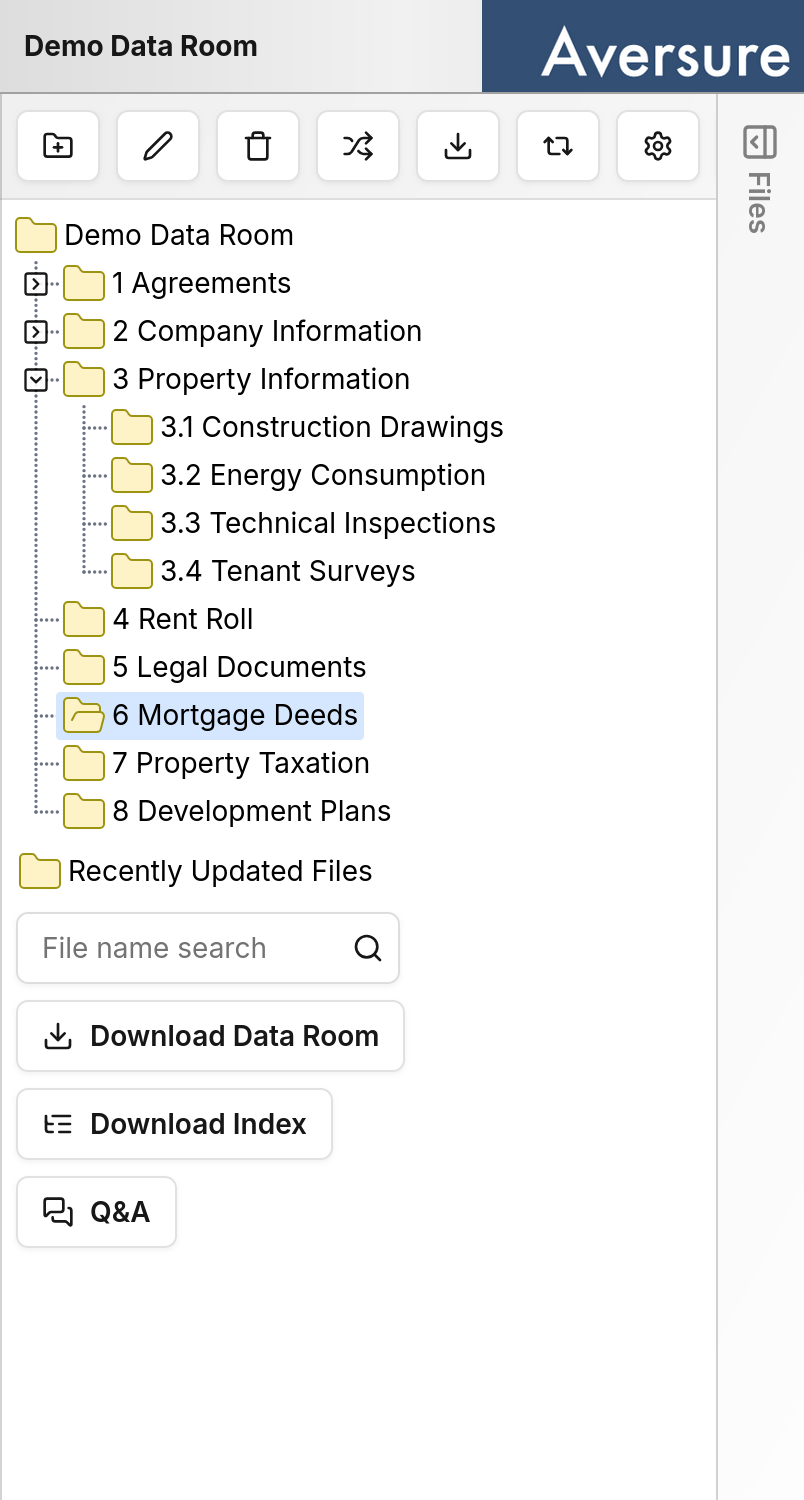
To move between the folder tree and the file list, tap the tab on the edge of the screen for the panel you want to see:- Tap the Folders and Q&A tab to open the folder tree and choose a folder.
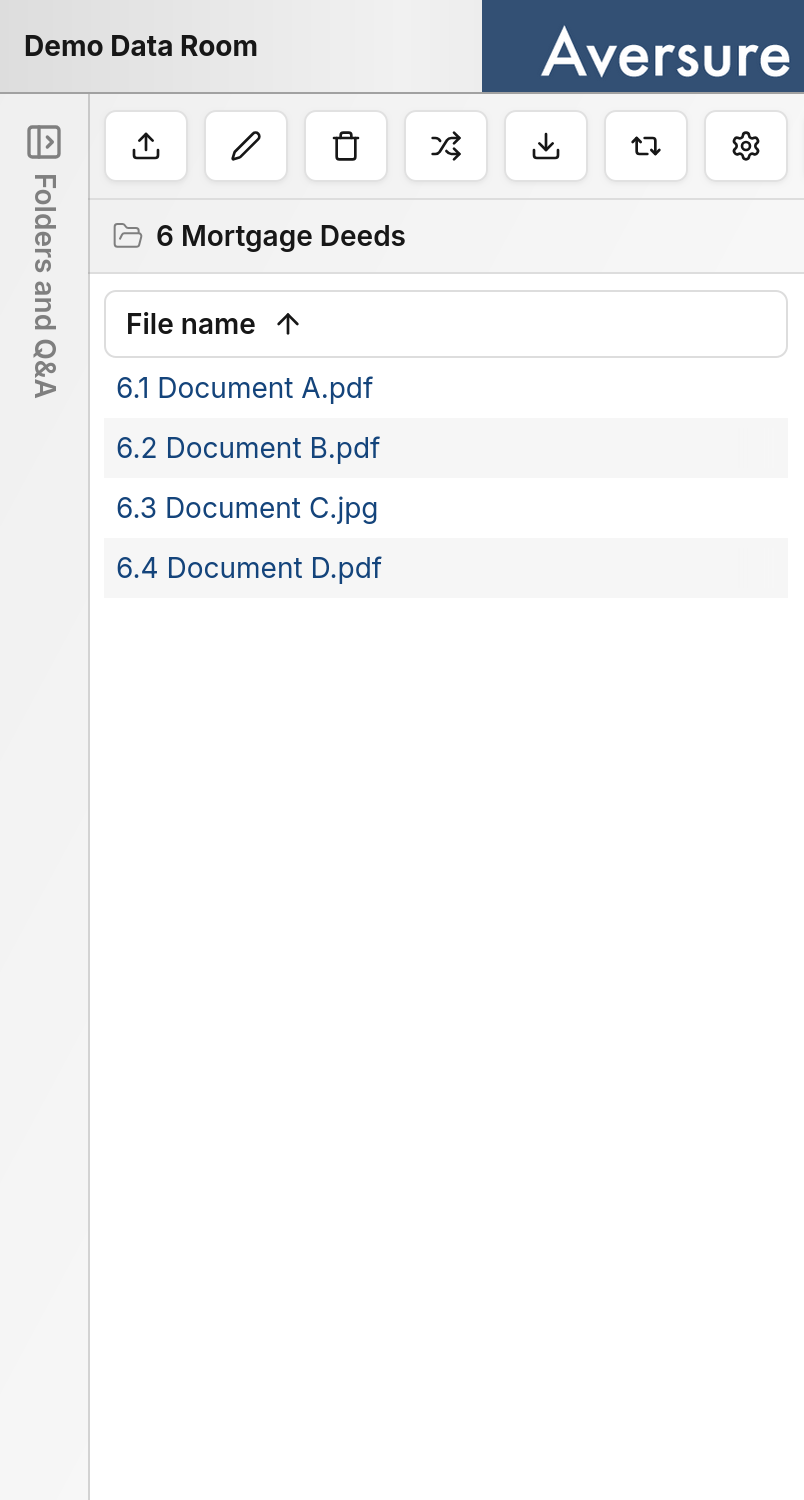
- Tap the Files tab to open the file list for the currently selected folder.
Managing folders
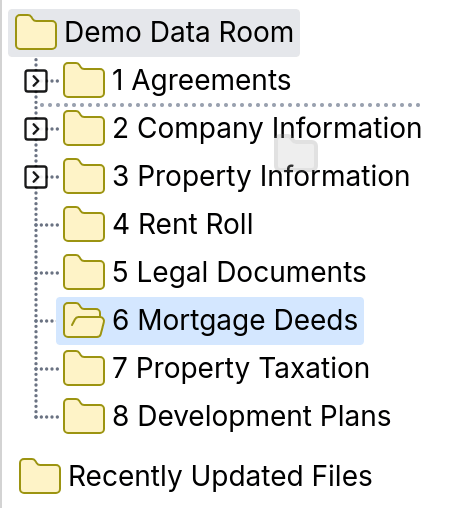
In the folder tree, a short touch on a folder opens it and switches to the Files panel so you can see its contents. A long touch on a folder instead selects it without opening it. When a folder is selected, the buttons in the menu above the tree act on that folder. You can use them to rename or delete the selected folder. The same menu also contains buttons for downloading the data room, creating new folders, and reindexing.On smaller screens the top menu may not fit in full. Swipe the menu horizontally to reach the buttons that are off-screen.
Managing files
In the Files panel the long-touch gesture is not used. Selection and opening of files instead work the same way as on the desktop interface: tapping a file name opens the file, while tapping elsewhere on the row selects it. Unlike on the desktop interface, only one file can be selected at a time on mobile. When a file is selected, you can rename, reorder, or delete it using the buttons in the top menu.