Enforced two-factor authentication cannot be enabled for the administrators of a data room, but they may employ user-enabled two-factor authentication.
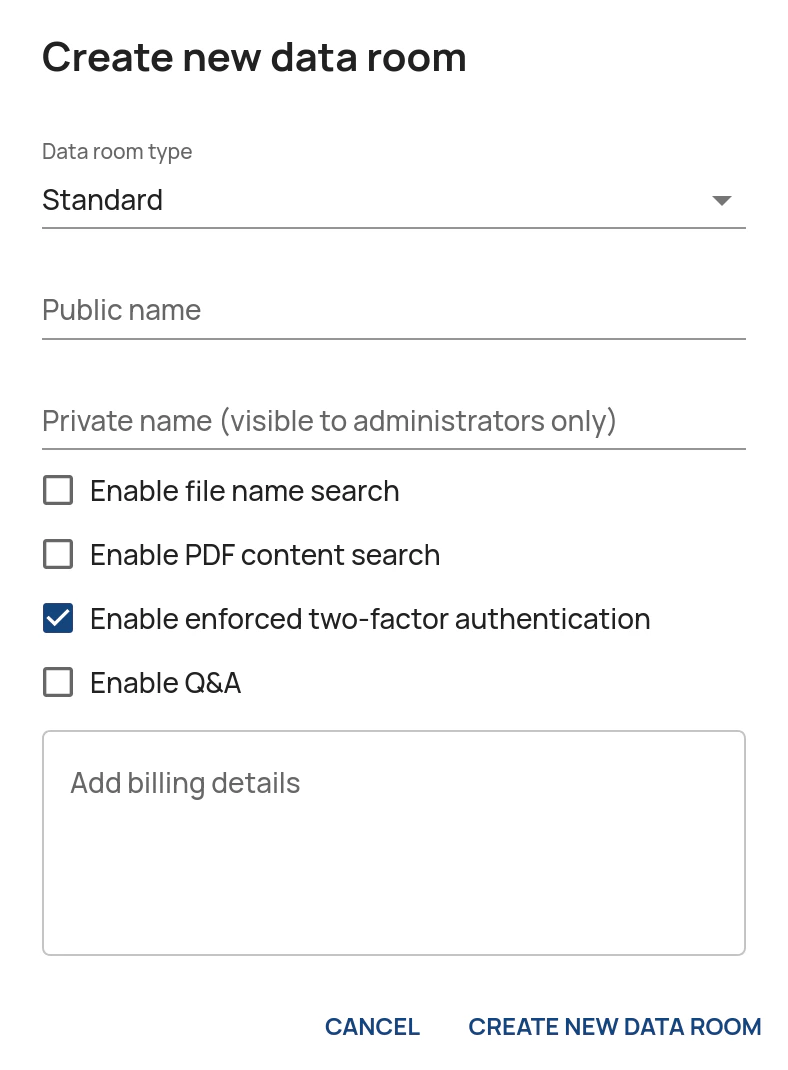
Enabling at data room creation
- Tick the Enable enforced two-factor authentication checkbox in the Create new data room dialog.
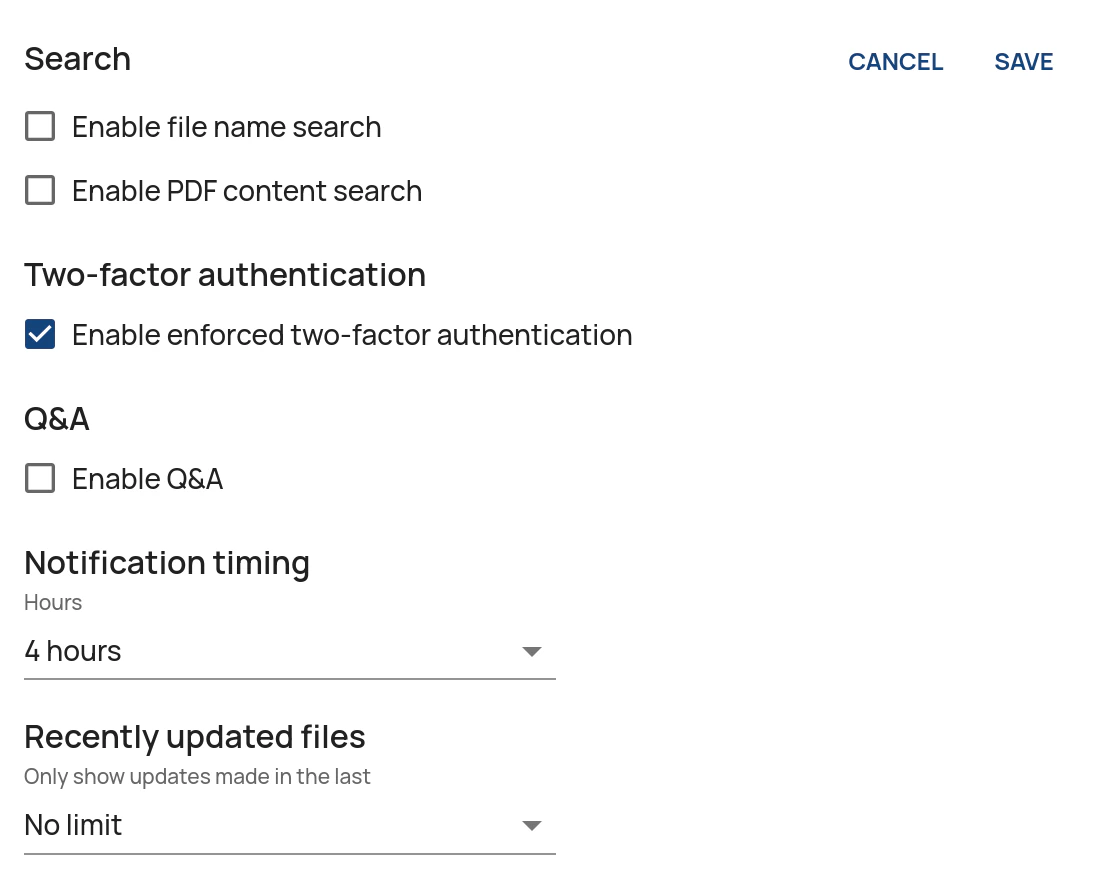
Enabling for an existing data room
- In the Administration Interface, go to the Data Rooms page.
- Click on Edit for the data room in question.
- Click on Edit settings.
- Tick the Enable enforced two-factor authentication checkbox.
-
Click on Save.
Adding enforced two-factor authentication for a user
- In the Administration Interface, go to the User Rights page.
- Select the Data room in the drop-down box in the header.
- Select the User group in the next drop-down box.
-
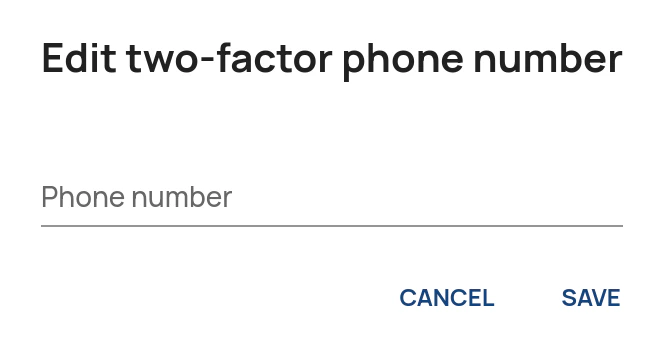
Once the user has been invited to the data room, click on the Edit button in the column Two-factor phone number.

-
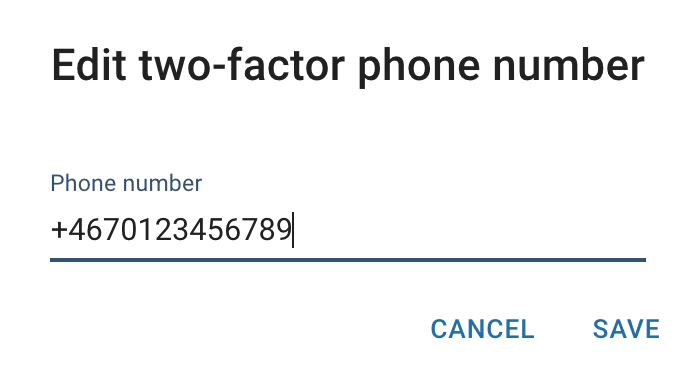
Enter the phone number in full international format (e.g. +4670123456789) and click on Save. Please note that the phone number needs to be able to receive text messages.
Removing two-factor authentication for a user
- In the Administration Interface, go to the User Rights page.
- Select the Data room in the drop-down box in the header.
- Select the User group in the next drop-down box.
- Click the Edit button in the Two-factor phone number column.
-
Clear the phone number field and click on Save to confirm.